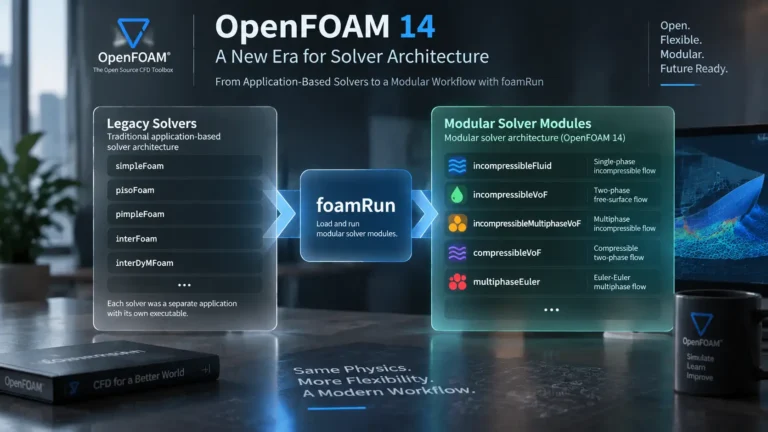

OpenFOAM on Ubuntu 24.04: Dual-Version Installation
Installing OpenFOAM on Ubuntu 24.04 becomes more involved when OpenFOAM Foundation 14 and OpenFOAM OpenCFD v2606 need to coexist on the same workstation. This guide installs both distributions side by side using their official package repositories, then builds a controlled shell setup that prevents their runtime environments from being mixed.
The installation itself is only part of the job. We will also copy the
tutorial trees into separate user workspaces, keep the original system
tutorials untouched, and create two simple commands:
of14 for Foundation 14 and of2606 for v2606.
A normal Ubuntu terminal will remain free of any automatically loaded
OpenFOAM environment.
Before moving to installation, we first compared the two software lines in OpenFOAM 14 vs v2606 for Marine CFD: Two Distributions, Two Workflows . That comparison explains why OpenFOAM 14 and v2606 are not consecutive releases of one distribution, how their solver and documentation ecosystems differ, and why this series uses Foundation 14 for the core Marine CFD path while keeping v2606 for the specialized Overset track. With that distinction established, this article moves to the practical next step: installing both distributions cleanly on the same Ubuntu workstation.
1. OpenFOAM on Ubuntu 24.04: System Check and Dual-Version Plan
The setup in this article was built and tested on Ubuntu 24.04 LTS (Noble). OpenFOAM Foundation 14 provides an official Ubuntu package for 24.04 LTS, and the OpenCFD v2606 release also provides precompiled packages for Ubuntu 24.04.
Check the operating-system release before starting:
lsb_release -a
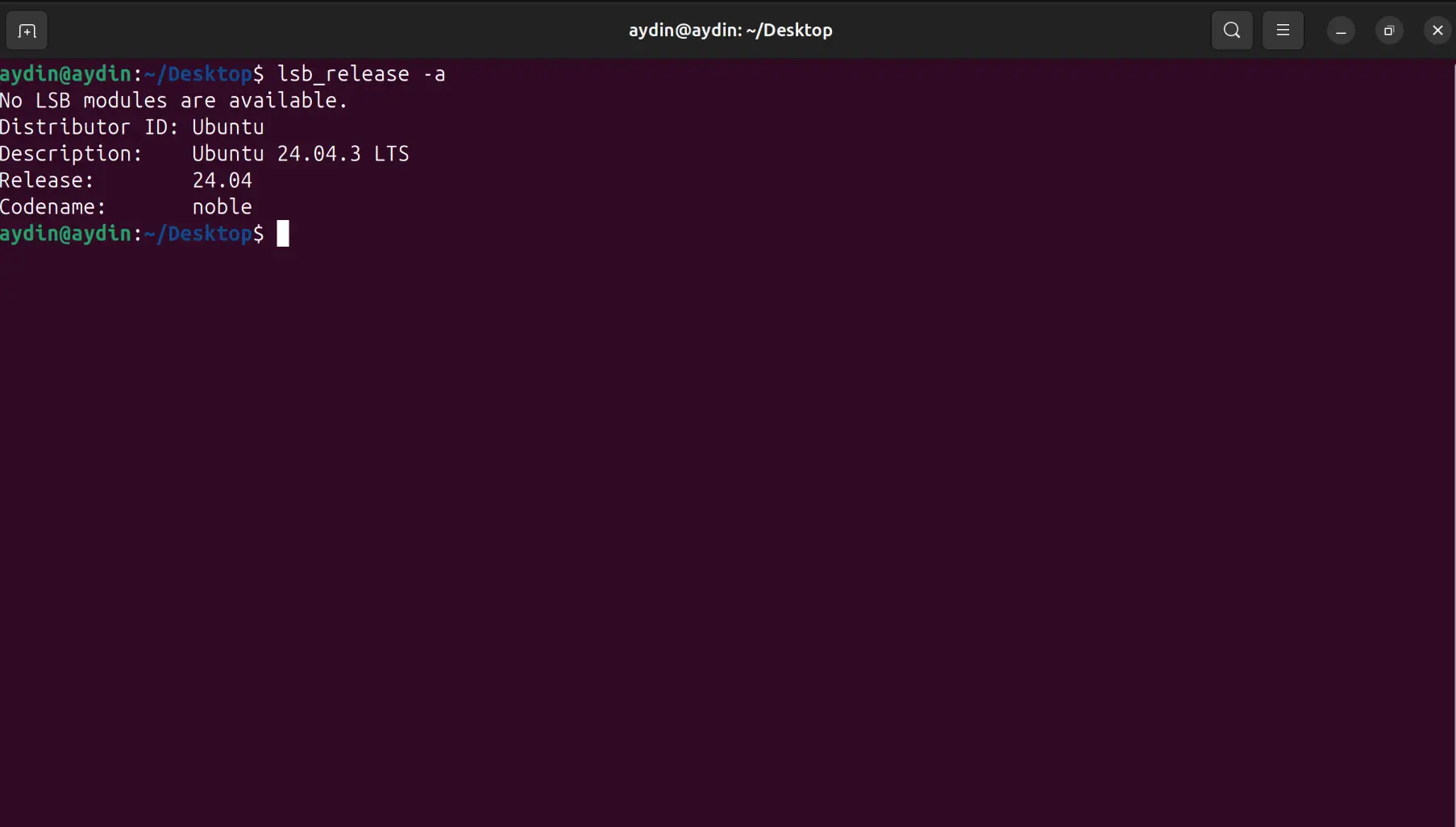
Scope of this guide: Ubuntu itself should already be installed and connected to the internet. A full Ubuntu installation, disk partitioning, UEFI configuration, and dual-boot setup are separate topics. Here we keep the focus on the OpenFOAM workstation.
The key design decision is simple: neither OpenFOAM distribution will be sourced automatically in a normal terminal. We will install both first, then create controlled child shells for each one.
2. Install OpenFOAM Foundation 14
For Foundation 14, use the
official OpenFOAM Foundation Ubuntu installation guide.
The official method uses the Foundation package repository and installs
the package named openfoam14. Readers who want to inspect the
source tree can also use the
official OpenFOAM Foundation 14 repository on GitHub.
Add the Official Foundation Repository
Make sure the basic repository tools are available:
sudo apt update
sudo apt install -y wget ca-certificates software-properties-common
Install the official repository signing key:
sudo sh -c "wget -O - https://dl.openfoam.org/gpg.key > /etc/apt/trusted.gpg.d/openfoam.asc"
If an older dl.openfoam.org source-list entry is already on
the machine, remove the old entry before adding the current repository:
sudo rm -f /etc/apt/sources.list.d/*dl_openfoam_org*list
Add the official Foundation repositories:
sudo add-apt-repository "http://dl.openfoam.org/ubuntu main dev"
Refresh APT and install OpenFOAM 14:
sudo apt update
sudo apt -y install openfoam14
The Foundation instructions intentionally use
http://dl.openfoam.org for the package repository while the
repository signing key provides package authentication. The signing key
itself is downloaded over HTTPS.
The official package places OpenFOAM 14 under
/opt/openfoam14. Do not manually relocate this directory;
it is managed by the Ubuntu package.
3. Verify OpenFOAM 14 and Copy the Tutorials
The official Foundation single-version workflow normally recommends
sourcing /opt/openfoam14/etc/bashrc from
~/.bashrc. For this dual-version workstation, we first use
it only for a temporary installation check:
source /opt/openfoam14/etc/bashrc
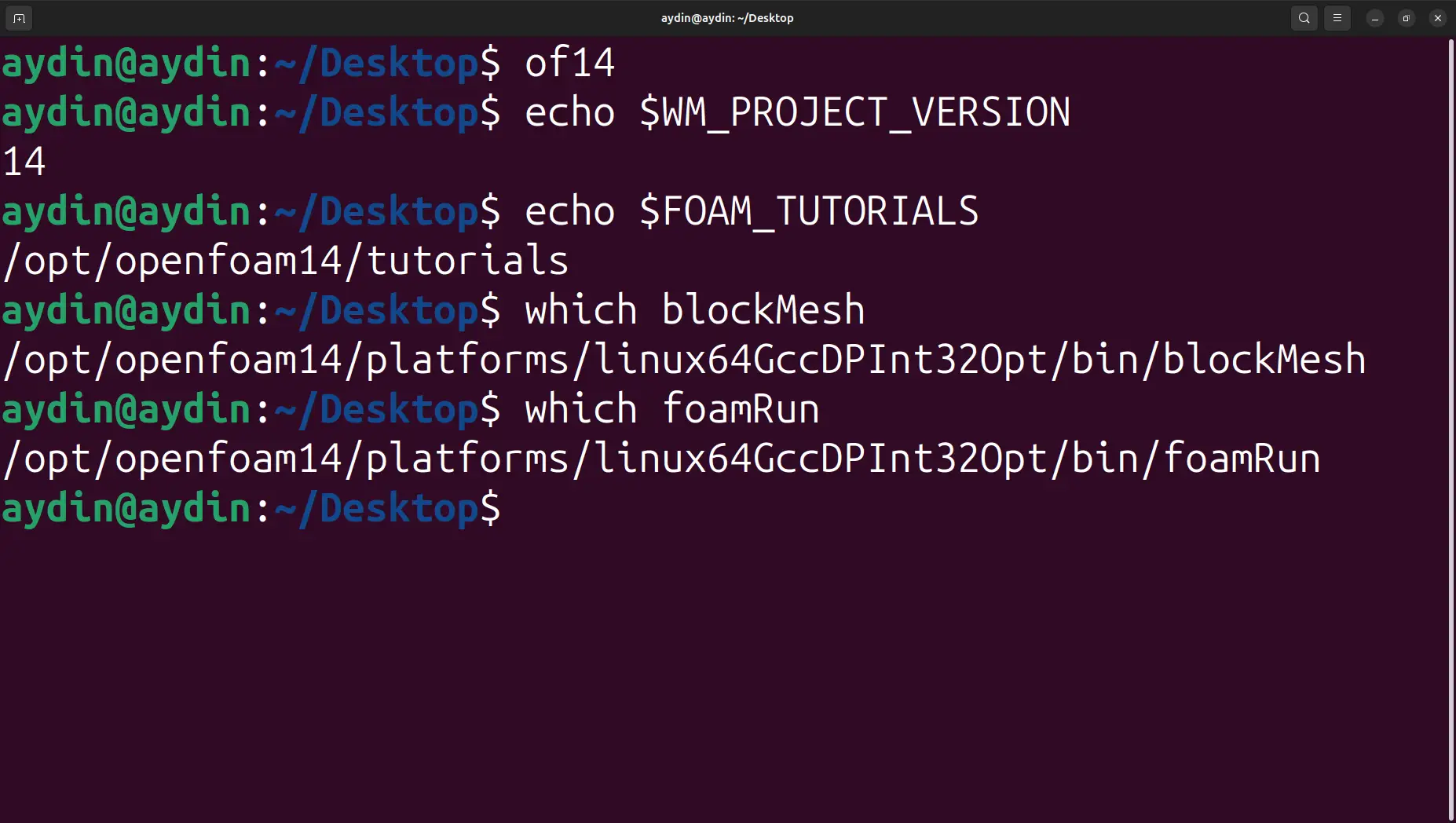
Verify the active version, project directory, tutorial directory, and
blockMesh executable:
foamVersion
echo $WM_PROJECT_DIR
echo $FOAM_TUTORIALS
which blockMesh
A correct installation should resolve the project directory to
/opt/openfoam14 and the official tutorial tree to
/opt/openfoam14/tutorials. The Foundation guide also uses
foamRun -help as an installation check:
foamRun -help
Create a Writable Foundation Workspace
The official Foundation getting-started workflow creates a user project
directory under $HOME/OpenFOAM and a
run directory. We follow the same principle, but copy the
complete tutorial collection so the system installation remains
untouched.
mkdir -p "$WM_PROJECT_USER_DIR/run"
cp -a --no-preserve=ownership "$FOAM_TUTORIALS" "$WM_PROJECT_USER_DIR/run/"
The resulting working tree follows this pattern:
~/OpenFOAM/<username>-14/run/tutorials.
From this point onward, modify and run tutorial cases from the user copy,
not directly from /opt/openfoam14/tutorials.
Important for the dual-version setup: do not leave
. /opt/openfoam14/etc/bashrc permanently enabled in
~/.bashrc. We will create a dedicated of14
shell later in this article.
4. Install OpenFOAM OpenCFD v2606
OpenFOAM v2606 belongs to the OpenCFD release line. The official current-release page identifies v2606 as the June 2026 release, and the official Linux installation page points Debian and Ubuntu users to precompiled system packages. Its official source repository is maintained on OpenFOAM’s GitLab repository for v2606.
Start this part from a new terminal in which Foundation 14 has not been sourced. A clean terminal should return no OpenFOAM version from:
echo $WM_PROJECT_VERSION
which blockMesh
Add the Official OpenCFD Debian/Ubuntu Repository
Install the small set of tools needed by the repository installer:
sudo apt update
sudo apt install -y curl ca-certificates
Then run the official OpenCFD repository helper:
curl -s https://dl.openfoam.com/add-debian-repo.sh | sudo bash
The helper adds the repository signing key, configures the repository
for the detected Linux distribution, and refreshes package metadata.
Running sudo apt update again is harmless and makes the
next step explicit:
sudo apt update
Confirm that the v2606 meta-package is visible:
apt-cache policy openfoam2606-default
Install the normal v2606 package set:
sudo apt install -y openfoam2606-default
The OpenCFD package description defines
openfoamVER-default as the meta-package containing the
components normally required for that release.
5. Verify v2606 and Build Separate Workspaces
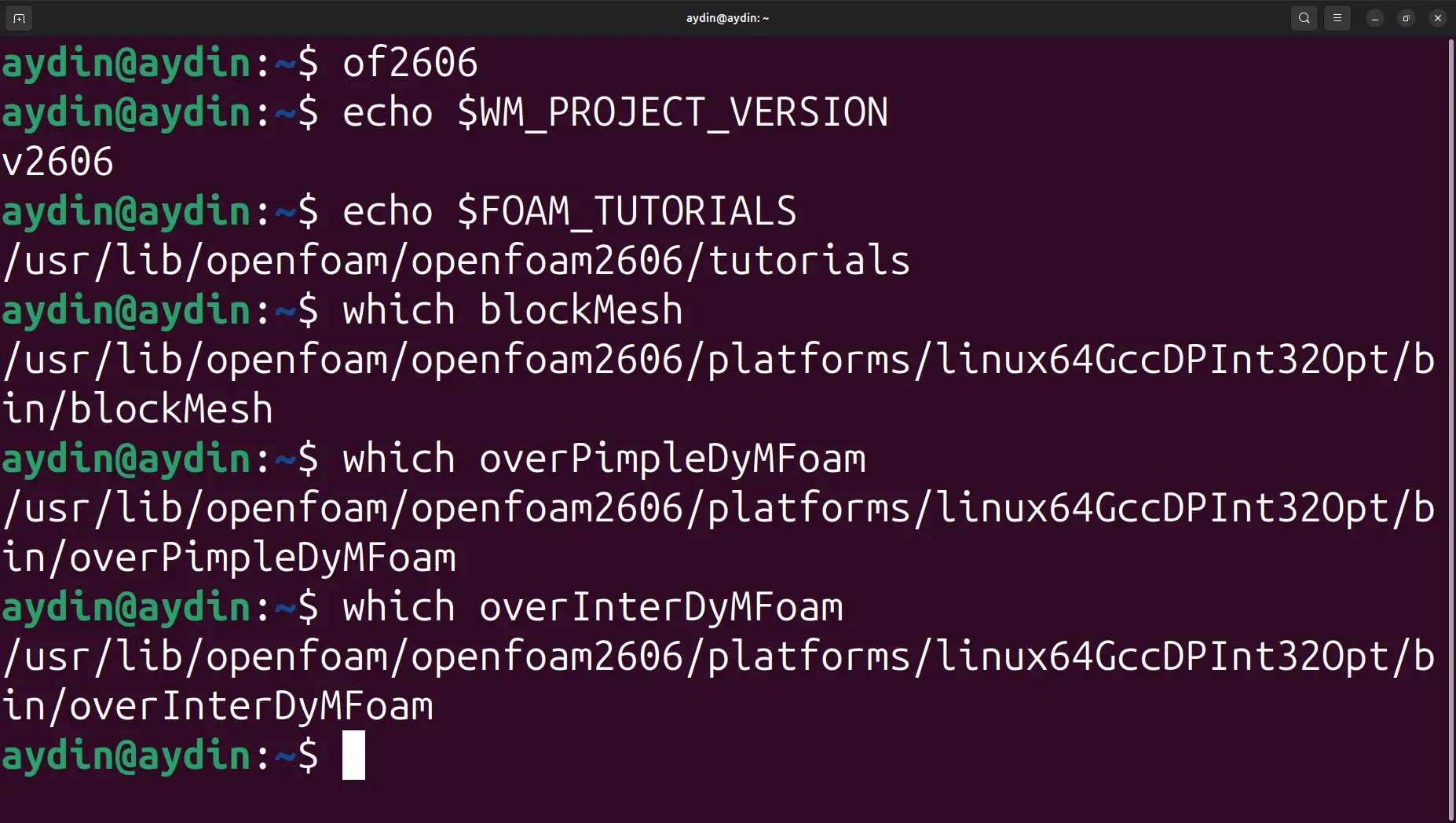
Activate v2606 temporarily for the installation check:
source /usr/lib/openfoam/openfoam2606/etc/bashrc
Verify the release and the two main installation paths:
foamVersion
echo $WM_PROJECT_DIR
echo $FOAM_TUTORIALS
The expected project path is
/usr/lib/openfoam/openfoam2606, and the official tutorials
are located under
/usr/lib/openfoam/openfoam2606/tutorials.
Because the later OceanTechReview Overset track uses the v2606 Overset applications, verify that the executables are present:
which overPimpleDyMFoam
which overInterDyMFoam
Copy the v2606 Tutorials into the User Workspace
As with Foundation 14, keep the package-managed tutorial tree unchanged and work from a copy in the user’s home directory:
mkdir -p "$WM_PROJECT_USER_DIR/run"
cp -a --no-preserve=ownership "$FOAM_TUTORIALS" "$WM_PROJECT_USER_DIR/run/"
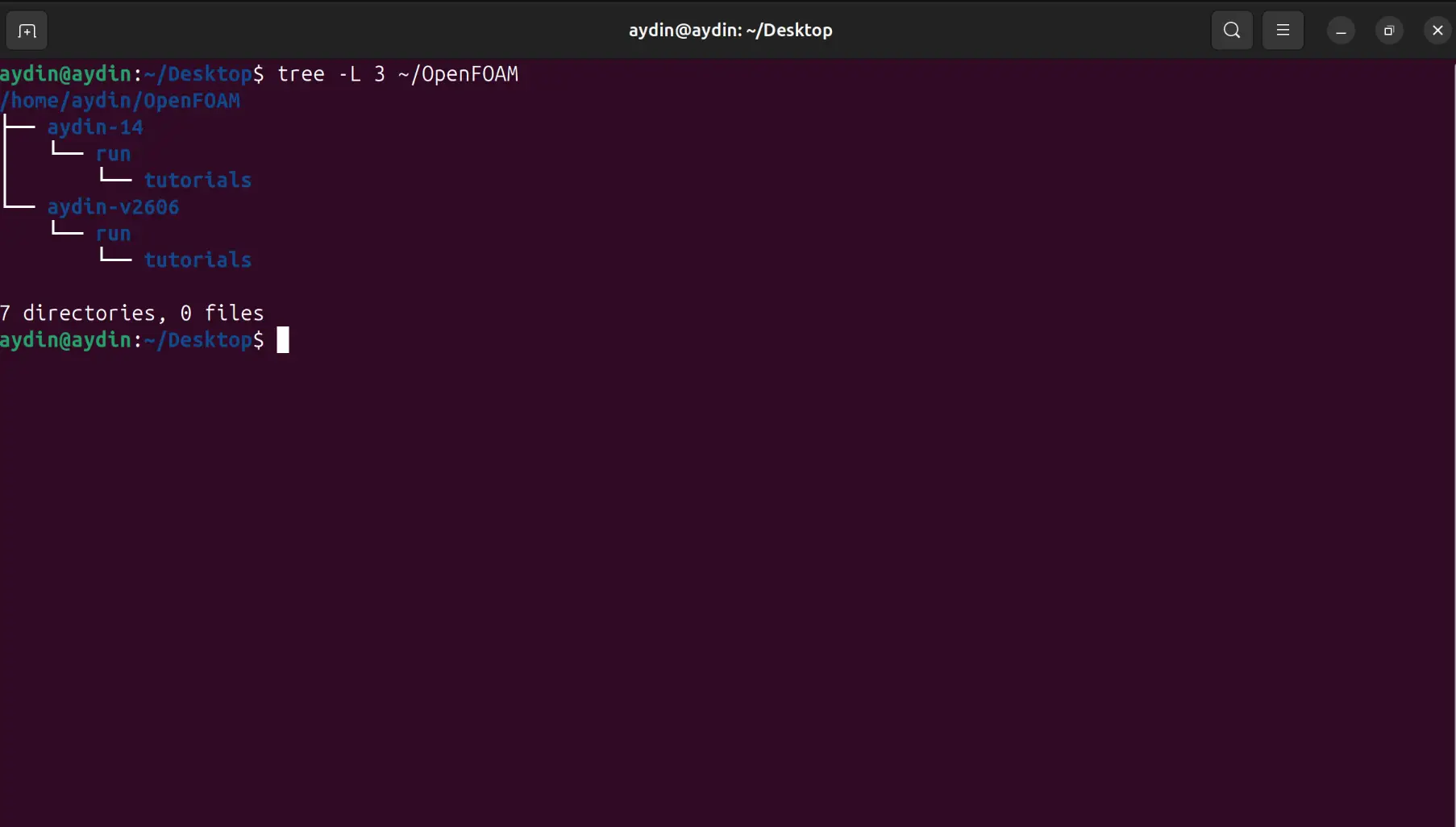
The two independent workspaces now follow this structure:
~/OpenFOAM/<username>-14/run/tutorials
~/OpenFOAM/<username>-v2606/run/tutorials
6. Why the Two OpenFOAM Versions Use Different Paths
A common question at this point is why Foundation 14 is installed in
/opt/openfoam14 while v2606 appears under
/usr/lib/openfoam/openfoam2606. The answer is packaging:
these directories are selected by the maintainers of the two
distributions, not by this tutorial.
The Foundation Ubuntu instructions state that OpenFOAM 14 is installed
in /opt. OpenCFD’s Debian/Ubuntu package documentation
places the main versioned installations under
/usr/lib/openfoam and explicitly describes that layout as
supporting multiple installed versions.
| Characteristic | OpenFOAM Foundation 14 | OpenFOAM OpenCFD v2606 |
|---|---|---|
| Official package | openfoam14 |
openfoam2606-default |
| Main installation path | /opt/openfoam14 |
/usr/lib/openfoam/openfoam2606 |
| Official tutorial path | /opt/openfoam14/tutorials |
/usr/lib/openfoam/openfoam2606/tutorials |
| User workspace | ~/OpenFOAM/<username>-14/run |
~/OpenFOAM/<username>-v2606/run |
| Command used in this guide | of14 |
of2606 |
Do not move either installation manually. Keeping each package in its official location allows APT to upgrade and manage it correctly. The different paths are normal and do not indicate a configuration error.
This separation is also useful conceptually: the two directory trees make it immediately visible that Foundation 14 and OpenCFD v2606 are independent software distributions even though they share the OpenFOAM name and a large body of CFD concepts.
7. Why the Environments Must Stay Isolated
Installing both packages side by side is safe. The subtle problem begins
if one environment is sourced on top of the other in the same shell.
OpenFOAM startup scripts modify variables such as
PATH, LD_LIBRARY_PATH,
WM_PROJECT_DIR, and FOAM_TUTORIALS.
During development of this setup, a v2606 Allrun script
attempted to locate geometry under an OpenFOAM 14 tutorial path. The
active solver belonged to v2606, but part of the shell environment still
pointed at Foundation 14. That is exactly the kind of silent
cross-version contamination this design is intended to prevent.
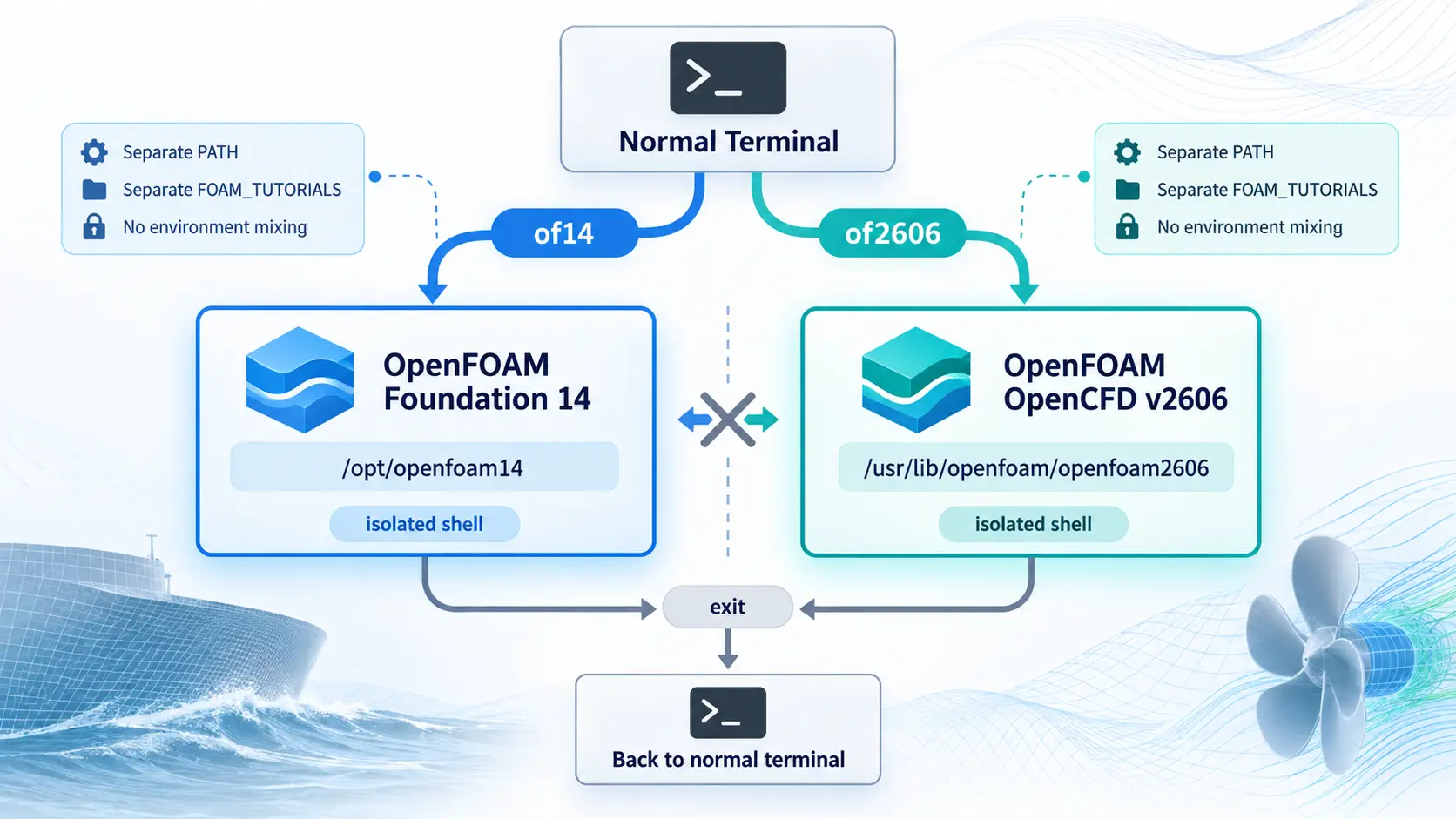
The target behaviour is therefore deliberate: a new normal terminal has
no active OpenFOAM version. of14 opens a Foundation shell,
of2606 opens a v2606 shell, and exit returns to
the clean parent terminal.
Controlled isolation, not a completely bare shell:
the configuration below deliberately reloads the user’s normal
~/.bashrc so aliases and ordinary shell preferences remain
available. For that reason, ~/.bashrc itself must not
automatically source any OpenFOAM environment.
8. Create the of14 and of2606 Commands
The dual-version setup uses simple Bash aliases instead of separate
OpenFOAM shell configuration files. The commands are stored in
~/.bash_aliases, which keeps the normal Ubuntu terminal
clean while allowing each OpenFOAM version to be activated only when
required.
First make sure that no OpenFOAM version is automatically loaded from
~/.bashrc. Any permanent line such as:
. /opt/openfoam14/etc/bashrc
should be removed or commented out.
Add the OpenFOAM Commands to ~/.bash_aliases
Open the aliases file:
nano ~/.bash_aliases
Add the following functions:
          # OpenFOAM 14

          of14()

          {

              source /opt/openfoam14/etc/bashrc

          }


          # OpenFOAM v2606

          of2606()

          {

              source /usr/lib/openfoam/openfoam2606/etc/bashrc

          }
Reload the normal Bash configuration:
source ~/.bashrc
The normal terminal should now remain clean until one of these commands is called:
of14
of2606
Important: Do not run both commands in the same shell.
Start the required OpenFOAM version, work inside that environment, and
leave it with exit before switching to the other version.
9. Final Verification, Daily Workflow, and Troubleshooting
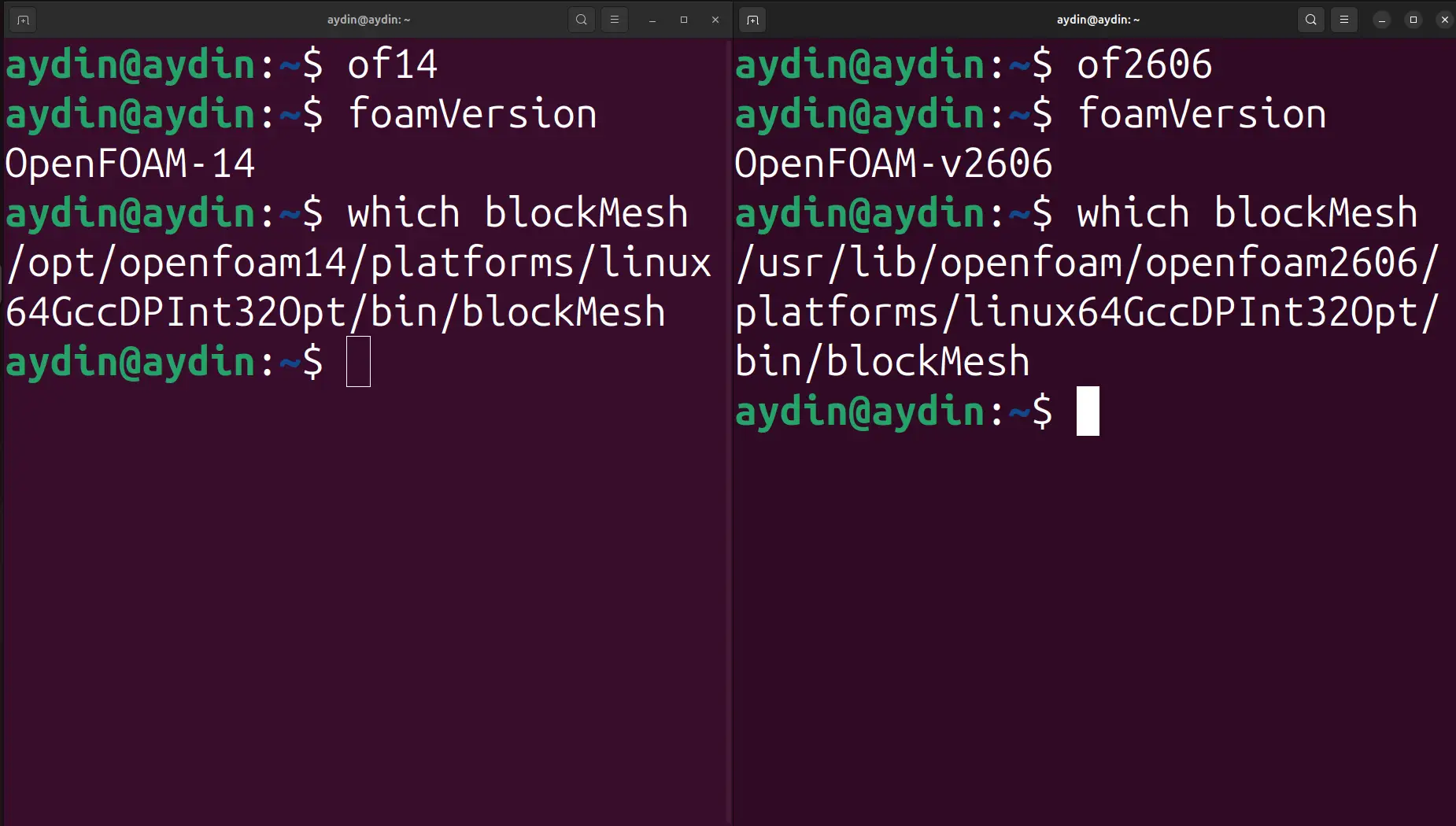
Open a new normal terminal. Before launching either version, verify that
echo $WM_PROJECT_VERSION is empty and
which blockMesh does not resolve to an OpenFOAM executable.
Run of14, then check
foamVersion and echo $WM_PROJECT_DIR.
The project directory should be /opt/openfoam14. If the
terminal was opened inside a case directory, pwd should
still report that same directory. Leave the environment with
exit.
Run of2606, then check
foamVersion and echo $WM_PROJECT_DIR.
The project directory should be
/usr/lib/openfoam/openfoam2606. As with
of14, the current case directory is preserved. Leave the
environment with exit.
Run Tutorials from the User Copy
For the simplest daily workflow, open the copied case directory in the
Ubuntu file manager, choose Open in Terminal, and then run
of14 or of2606. The launcher activates the selected
OpenFOAM environment while leaving the terminal inside that case. The
parent run directory does not necessarily contain an
Allrun file.
If the case provides an Allrun script, it can normally be run
directly with ./Allrun; many tutorials also provide
./Allclean for resetting generated files. The script itself
sources OpenFOAM’s RunFunctions when required, so users do not
need to source that helper manually before running the script. Individual
applications can still be executed one by one when the workflow needs to
be inspected or documented in more detail.
Installation and Environment Troubleshooting
NO_PUBKEY or repository-signature errors: reinstall the
official Foundation signing key and run sudo apt update
again. Do not disable package-signature verification.
Unmet dependencies for openfoam14: the official
Foundation installation guide identifies a disabled Ubuntu
universe repository as a common cause. Enable it with
sudo apt-add-repository universe and then run
sudo apt update.
Hash Sum mismatch: clear the APT cache with
sudo apt clean, refresh package metadata, and retry. Do not
force installation of a package whose checksum does not match.
foamVersion: command not found: no OpenFOAM environment
is active. Use of14 or of2606.
ParaView reports “could not connect to display :0” or an
xcb platform-plugin error: on an Ubuntu Wayland
desktop, first exit the OpenFOAM shell, reload ~/.bashrc, and
launch it again so the updated desktop-session variables are inherited.
Inside the OpenFOAM shell, echo $WAYLAND_DISPLAY should be
non-empty and echo $QT_QPA_PLATFORM should report
wayland. The launcher also preserves XAUTHORITY
for X11/Xwayland compatibility.
cannot open /bin/tools/RunFunctions: this normally means
$WM_PROJECT_DIR is empty. Enter the correct OpenFOAM shell
first and then rerun the tutorial.
v2606 points to an OpenFOAM 14 tutorial directory:
leave the current shell with exit and start
of2606 from a clean normal terminal. Do not source one
version over the other.
10. Conclusion: A Clean Dual-OpenFOAM Workstation
A reliable dual-version OpenFOAM setup is not simply a matter of installing two packages. The important part is preserving a clear boundary between their package-managed files, tutorial workspaces, and runtime environments.
OpenFOAM Foundation 14 is installed with the official
openfoam14 Ubuntu package under
/opt/openfoam14. OpenFOAM OpenCFD v2606 is installed from
the official OpenCFD Debian/Ubuntu repository and uses the versioned
directory /usr/lib/openfoam/openfoam2606. The difference
between those paths is intentional and comes from the packaging model of
each distribution.
The original tutorial trees remain inside the package installations,
while writable copies live under separate user project directories in
~/OpenFOAM. This keeps experiments and modifications away
from files managed by APT.
Most importantly, neither distribution is automatically loaded in a
normal terminal. of14 starts the Foundation 14 environment,
of2606 starts the v2606 environment, and exit
returns to the clean parent shell before switching versions. Both
launchers preserve the directory from which they are started, so a case
can be opened in the file manager, launched with Open in
Terminal, and activated in place. On Wayland desktops, the same
shell configuration also keeps Qt/ParaView GUI launching functional.
This is the baseline workstation configuration used in the remaining OceanTechReview Marine CFD series. With OpenFOAM on Ubuntu 24.04 configured this way, one Ubuntu system can host two independent OpenFOAM distributions, separate tutorial workspaces, and a predictable shell for every case.