
OpenFOAM 14 Tutorial: Your First pitzDailySteady Simulation
This OpenFOAM 14 tutorial walks through a complete first
simulation using pitzDailySteady, the steady
backward-facing-step case used in the OpenFOAM Foundation getting-started
workflow. Instead of treating the tutorial as a single command, we will
inspect the case, generate and check the mesh, run the modular
foamRun solver, verify SIMPLE convergence, and examine the
velocity field in ParaView.
The simulation shown here was run with OpenFOAM Foundation 14 on Ubuntu 24.04 using a writable tutorial copy under the user project directory. The final run converged in 285 SIMPLE iterations, and the post-processing images in this article come from that actual case.
If OpenFOAM 14 is not installed yet, start with How to Install OpenFOAM 14 and v2606 on Ubuntu 24.04 . If you are still deciding which OpenFOAM distribution belongs in your Marine CFD workflow, see OpenFOAM 14 vs v2606 for Marine CFD: Two Distributions, Two Workflows . This article assumes the Foundation 14 environment is already available.
1. OpenFOAM 14 Tutorial Workflow for pitzDailySteady
The official OpenFOAM Foundation Ubuntu guide uses
pitzDailySteady as a first steady-state example and runs it
with blockMesh, foamRun, and
paraFoam. In this tutorial we keep that same core workflow,
but expose one extra step: checkMesh. That lets us verify the
grid before solving instead of treating meshing and solution as one
opaque operation.
The case also includes an Allrun script. It is useful as an
automated shortcut, but the main learning path below runs the important
applications separately so each stage can be inspected.
Why use the manual path first? The supplied
Allrun script runs blockMesh and
foamRun, but it does not run checkMesh.
Executing the applications separately makes the case easier to
understand and documents the mesh-quality check explicitly.
2. Open the Case and Activate OpenFOAM 14
In the OceanTechReview setup, the copied Foundation tutorials are stored under:
~/OpenFOAM/<username>-14/run/tutorials
Navigate to
incompressibleFluid/pitzDailySteady in the Ubuntu file
manager, choose Open in Terminal, and activate the
Foundation 14 shell:
of14
The of14 command is the isolated launcher created in the
previous installation article; it is not a stock OpenFOAM command. If you
use the standard single-version Foundation setup instead, activate the
environment with:
source /opt/openfoam14/etc/bashrc
The isolated launcher used in this series preserves the directory from
which it is started. That matters for day-to-day CFD work: you can browse
to any case, open a terminal there, run of14, and remain in
the case instead of being redirected to a generic run
directory.
Verify the version, current directory, and top-level case contents:
foamVersion
pwd
ls -1
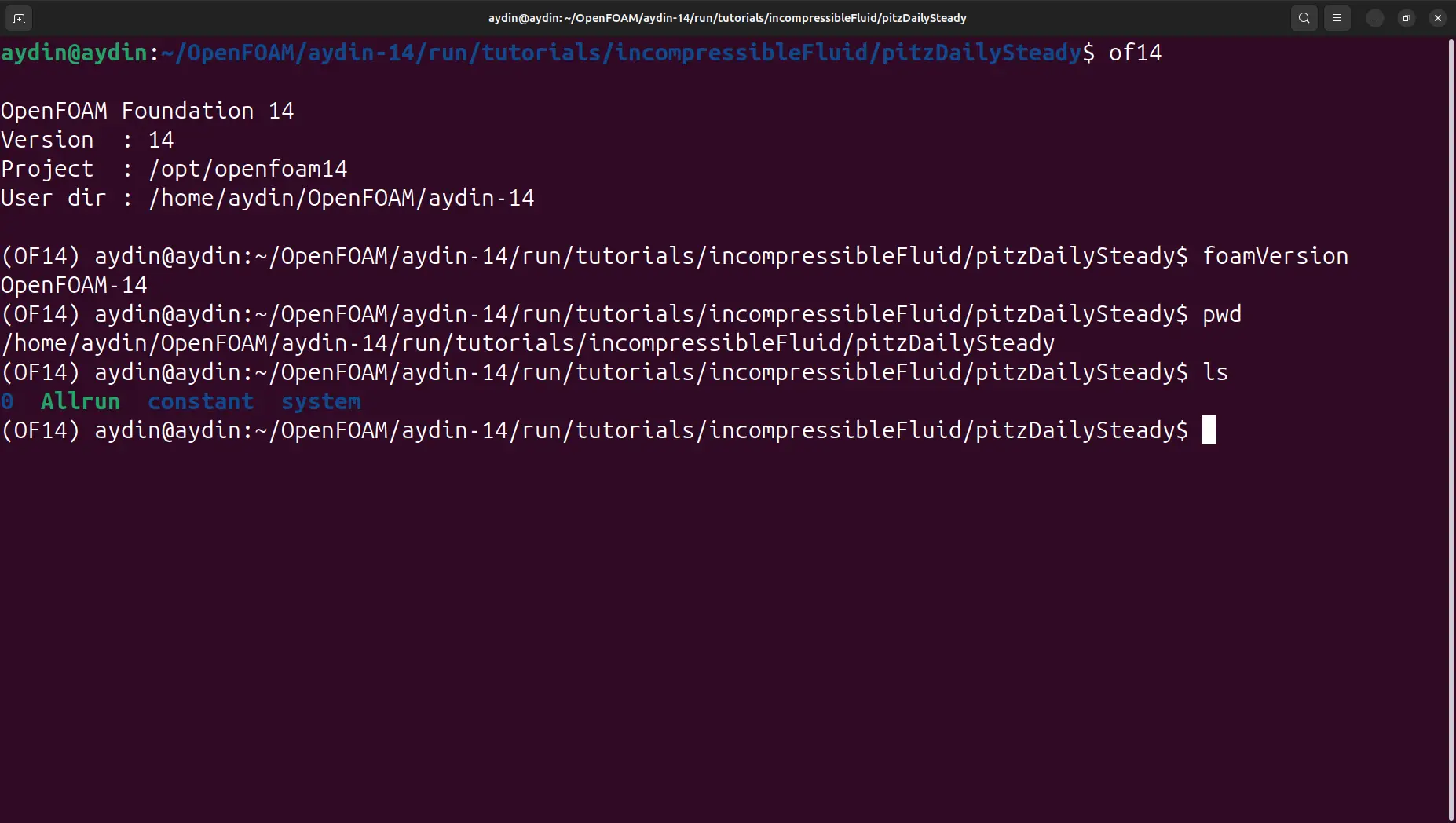
A clean starting case contains the familiar OpenFOAM directories
0, constant, and system, plus the
tutorial automation script Allrun. Seeing
OpenFOAM-14 from foamVersion confirms that the
commands in the next sections will use the intended Foundation release.
3. Read the pitzDailySteady Case Structure
Before running a first OpenFOAM simulation, it is worth understanding what the main directories represent. OpenFOAM cases are intentionally file-based: the physical fields, models, numerical controls, and run settings live in plain-text dictionaries that can be inspected and version-controlled.
The 0 Directory: Initial and Boundary Fields
The 0 directory contains the initial and boundary conditions
for the primary solution fields. In this incompressible turbulent case,
that includes velocity U, pressure p, and the
turbulence quantities required by the selected model.
The constant Directory: Physical and Mesh Data
The constant directory stores time-independent physical
configuration and, after meshing, the generated
polyMesh database. This is where OpenFOAM keeps the mesh
connectivity and boundary-patch definitions used by the solver.
The system Directory: Numerics and Run Control
The system directory controls the calculation. The
controlDict selects the solver module and run behaviour,
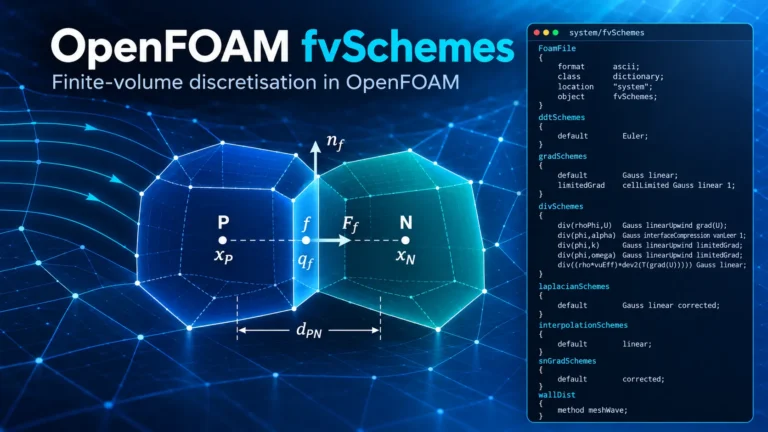
fvSchemes defines discretisation schemes, and
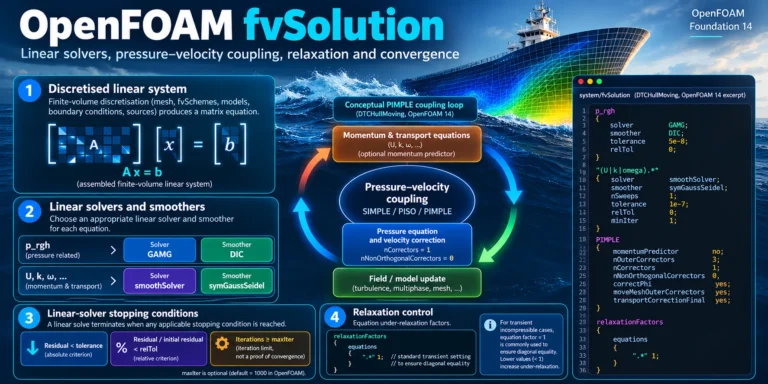
fvSolution contains linear-solver and SIMPLE/PIMPLE controls.
For this case, foamRun reads the solver entry in
controlDict and loads the corresponding
incompressibleFluid module.
You can inspect the automation before running it:
sed -n '1,120p' Allrun
A detail that matters in this tutorial:
pitzDailySteady does not rely on a local
system/blockMeshDict in the workflow used here. Its
Allrun script points blockMesh to the shared
tutorial resource
$FOAM_TUTORIALS/resources/blockMesh/pitzDaily. This is why
copying a generic blockMeshDict into the case is neither
necessary nor desirable for reproducing the reference tutorial.
4. Understand the Backward-Facing-Step Flow
The physics are simple enough for a first CFD tutorial but still meaningful. Flow enters through the narrower upstream section and reaches a sudden expansion at the backward-facing step. The boundary layer can no longer follow the sharp corner, so the flow separates and creates a low-velocity recirculation region along the lower wall.
Farther downstream, the separated shear layer approaches the lower wall
again and the main flow reattaches. This combination of acceleration,
separation, reverse flow, and reattachment makes the case useful for
learning how a CFD result should be interpreted instead of merely
checking whether a solver reached End.
The tutorial is effectively two-dimensional: the mesh has only one cell
through the thin spanwise direction and the frontAndBack
patch removes that direction from the solution. That keeps the
computational cost low while preserving the essential separated-flow
behaviour in the streamwise plane.
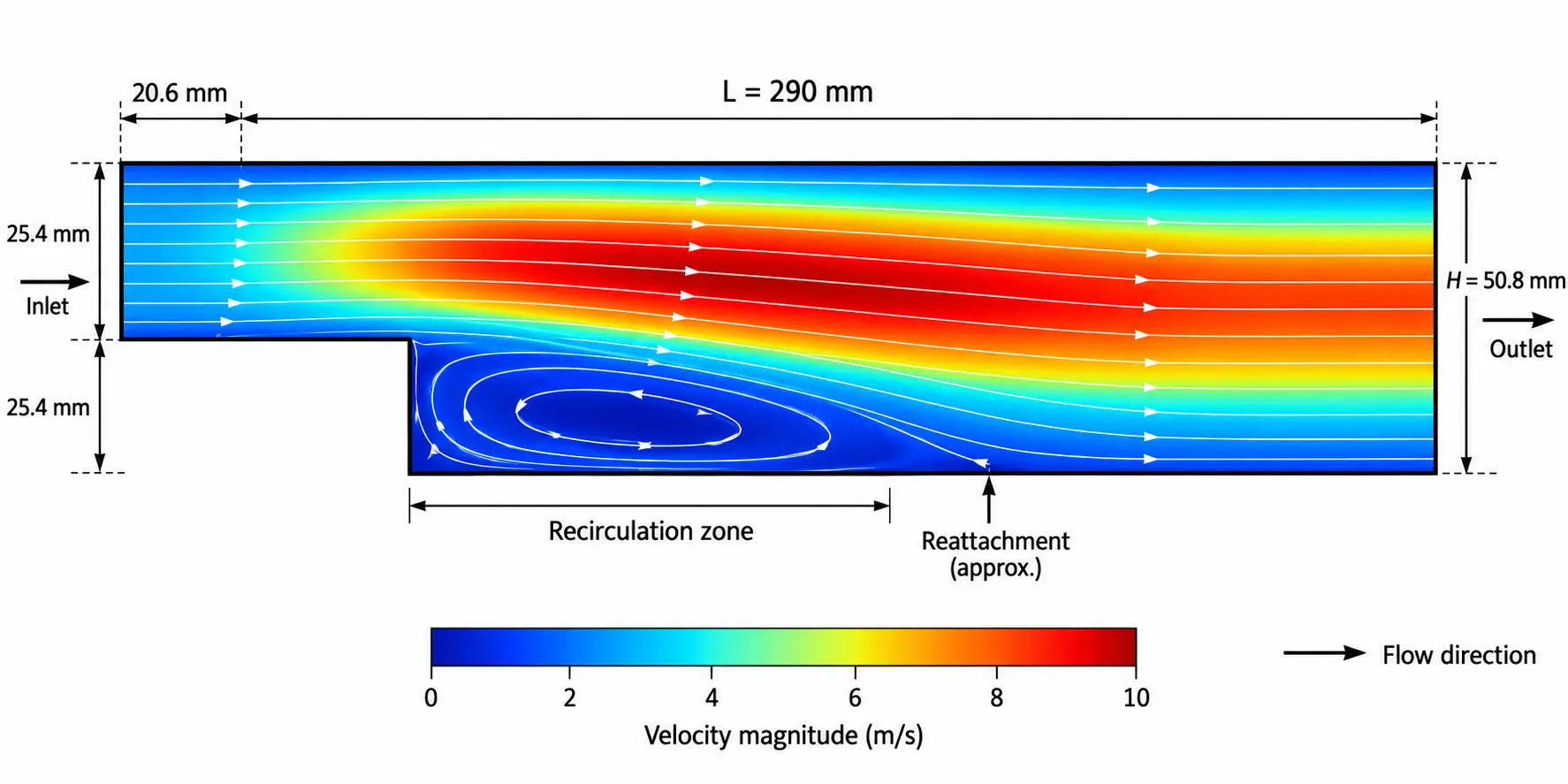
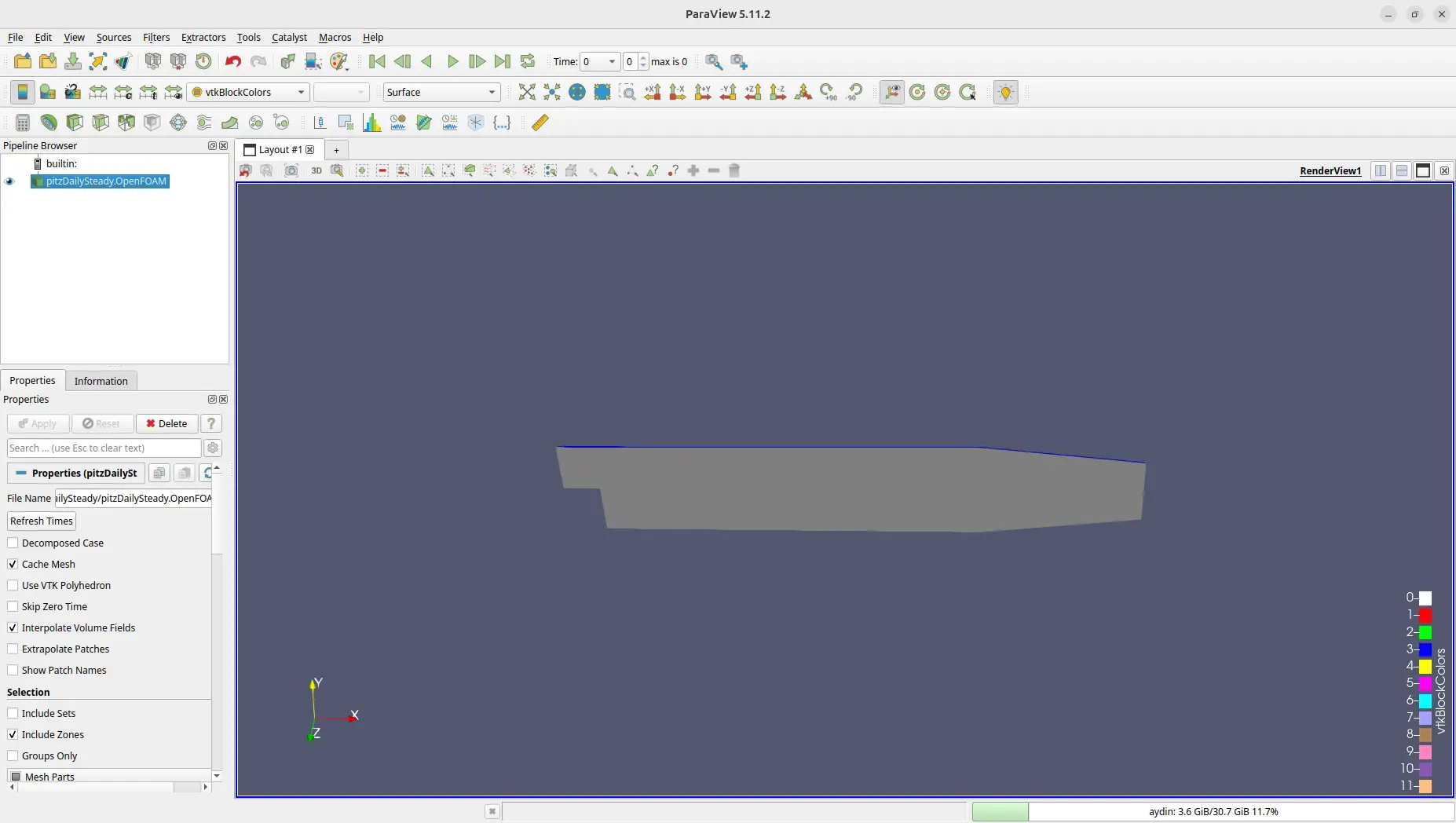
The generated mesh has a bounding box from
x = -0.0206 m to x = 0.29 m and from
y = -0.0254 m to y = 0.0254 m. In other words,
the geometry includes a 20.6 mm upstream section and extends 290 mm
downstream of the step, with a full downstream height of 50.8 mm.
For this first tutorial, the purpose is not to perform a literature validation of reattachment length. The goal is to connect the visible flow features in ParaView with the numerical workflow that produced them.
5. Generate and Check the Mesh
The Allrun script shows the exact mesh dictionary used by
this case. To reproduce that step manually, run:
blockMesh -dict "$FOAM_TUTORIALS/resources/blockMesh/pitzDaily"
The mesh generated during this run contained
12,225 cells, all of them hexahedra. The five boundary
patches were inlet, outlet,
upperWall, lowerWall, and
frontAndBack.
Before solving, check the mesh:
checkMesh
The mesh passed the standard checks with Mesh OK. The reported maximum non-orthogonality was approximately 5.95°, the maximum skewness was about 0.261, and the maximum aspect ratio was about 8.14. For this tutorial mesh, those values are comfortably within a range that allows us to proceed to the solution.
These numbers are not universal acceptance limits for every CFD project. Mesh quality must always be judged together with the discretisation, solver robustness, local refinement needs, and the quantities of interest. Here they simply confirm that the untouched reference mesh is behaving as expected before we move on to the solver.
Open the case in ParaView:
paraFoam
Why run checkMesh when Allrun does not? An automated tutorial can assume a known-good reference mesh. A practical CFD workflow should still make mesh verification explicit, especially once you begin modifying geometry, grading, refinement, or boundary patches.
6. What the Core Case Files Control
At this point the case has a valid mesh, but it is useful to connect the
directory structure with what the solver is about to do. The table below
summarises the parts of pitzDailySteady that matter most in
this first OpenFOAM 14 simulation.
| Case Component | Where to Look | What It Controls |
|---|---|---|
| Velocity and pressure fields | 0/U, 0/p |
Initial values and inlet, outlet, wall, and front/back boundary conditions. |
| Physical models | constant/ |
Time-independent transport, turbulence, and generated mesh data. |
| Run and solver selection | system/controlDict |
Selects the solver module used by foamRun and controls output. |
| Discretisation | system/fvSchemes |
Defines gradient, divergence, Laplacian, and interpolation schemes. |
| SIMPLE and linear solvers | system/fvSolution |
Controls equation solvers, relaxation, SIMPLE settings, and residual-based convergence. |
| Automated tutorial run | Allrun |
Sources tutorial run helpers, generates the mesh, and launches foamRun. |
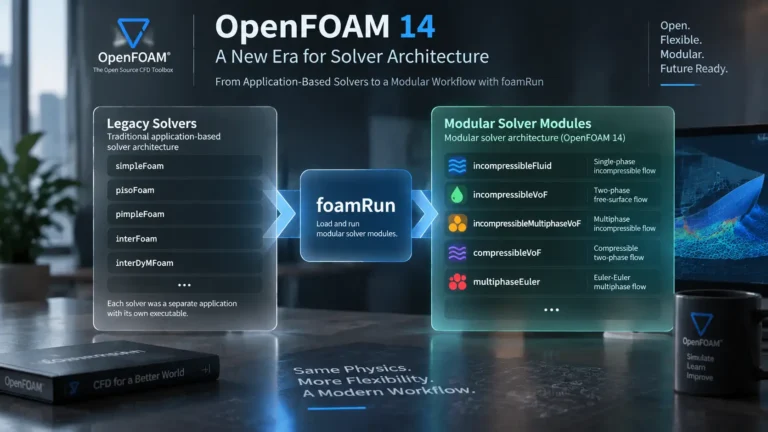
OpenFOAM Foundation 14 uses the modular solver architecture introduced
in recent Foundation releases. Instead of launching a legacy
application such as simpleFoam for this workflow,
foamRun loads the solver module selected by the case.
The official v14 user guide describes this mechanism in detail.
For a first run, you do not need to edit these dictionaries. The value of reading them now is conceptual: when you later change a boundary condition, turbulence model, scheme, or convergence tolerance, you will know which part of the case owns that decision.
One item is especially useful to remember for later tutorials:
fvSolution contains the SIMPLE controls and the
residualControl criteria that determine when this
steady-state solution is allowed to stop. The solver does not terminate
merely because a fixed number of iterations has been reached; it stops
once the configured convergence criteria are satisfied.
7. Run the Simulation with foamRun or Allrun
With the mesh checked, run the solver directly from the case directory:
foamRun
This is the clearest command for the manual workflow because the
simulation progress is printed directly in the terminal. The
OpenFOAM v14 backward-facing-step user guide
explains that foamRun loads the solver module from the
solver entry in controlDict and reports the
residuals for each equation as the solution advances.
The case also provides Allrun. Its essential commands are:
          . $WM_PROJECT_DIR/bin/tools/RunFunctions

          runApplication blockMesh -dict $FOAM_TUTORIALS/resources/blockMesh/pitzDaily

          runApplication foamRun
Therefore the shortcut is simply:
./Allrun
When Allrun calls runApplication, the tutorial
helper writes application output to log files such as
log.blockMesh and log.foamRun. You do not need
to source RunFunctions manually before executing
./Allrun; the script already does that itself.
If you prefer the manual workflow but still want a persistent solver log,
you can also use foamRun | tee log.foamRun. That preserves
the live terminal output while writing the same text to a file for later
inspection.
Use one workflow deliberately. For learning and
documentation, run blockMesh, checkMesh, and
foamRun separately. For a quick repeat of the unchanged
tutorial, ./Allrun is convenient. Running
./Allrun after a manual mesh build will simply rebuild the
tutorial mesh before solving again.
8. Verify SIMPLE Convergence from the Solver Log
Solver completion is not the same thing as numerical convergence. The
useful evidence is in the residual history and the termination message.
If the case was run with Allrun, inspect the end of the log:
tail -n 20 log.foamRun
The final iteration shows the linear solvers reducing residuals for
Ux, Uy, p,
epsilon, and k. These lines show that each
equation is being solved to the tolerances requested by the case.
The decisive line is
SIMPLE solution converged in 285 iterations. In this
steady-state case, the displayed final index should be interpreted as
solution progression toward a steady state, not as 285 seconds of
physical transient flow time.
In the final recorded iteration, the initial residuals were approximately
1.21e-4 for Ux,
9.96e-4 for Uy,
1.34e-3 for p,
1.38e-4 for epsilon, and
2.21e-4 for k. The exact intermediate values
are less important than the overall pattern: the equations continue to
reduce their residuals until the SIMPLE residual controls are met.
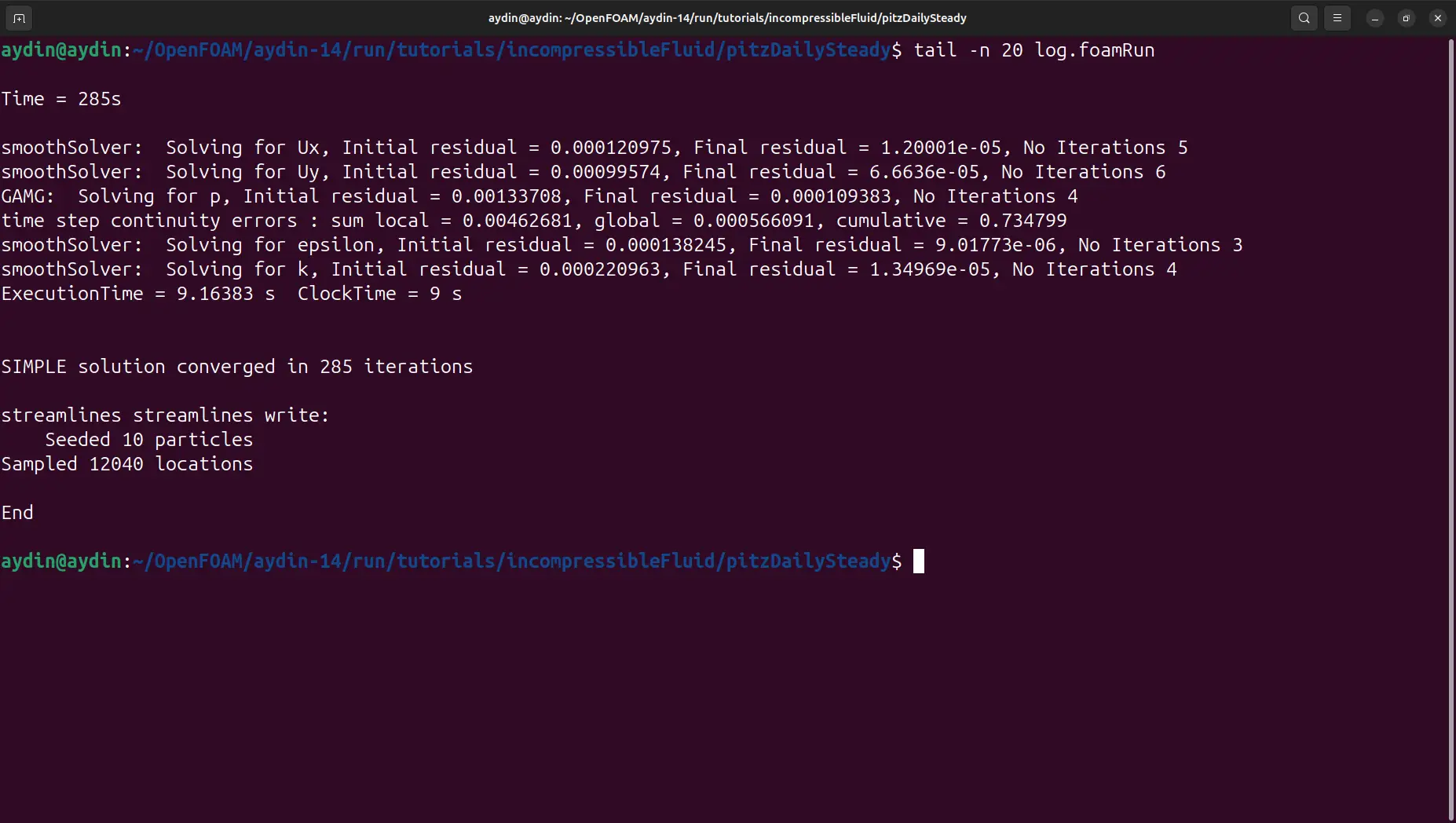
The run also executed the case’s streamline post-processing function,
reporting 10 seeded particles and
12,040 sampled locations before the final
End message. That gives us both a converged solution and
post-processing data to inspect.
The official v14 user guide reports the same 285-iteration termination
for this example when the residual controls in
fvSolution are satisfied. That makes
pitzDailySteady a useful first case because the convergence
behaviour is predictable and easy to verify.
9. View Velocity and Recirculation in ParaView
Open the solved case in ParaView with:
paraFoam
Select the final solution state, choose U as the colouring
field, and display its Magnitude. A
Surface representation gives a clean view of the velocity
distribution. Use Rescale to Data Range so the colour
legend reflects the solved field rather than an earlier display range.
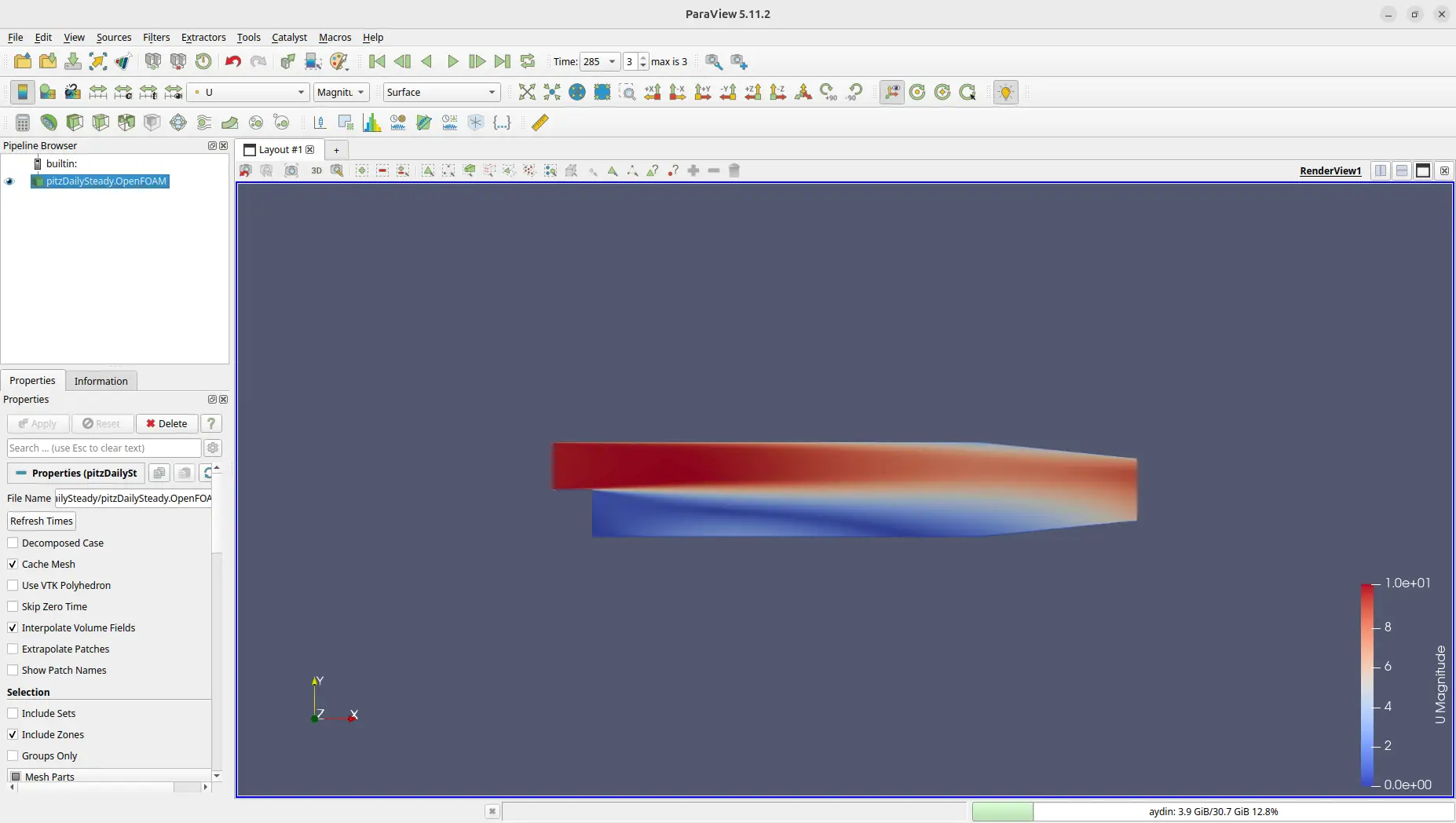
The hero image at the top of this article shows the converged
velocity-magnitude field from this run.
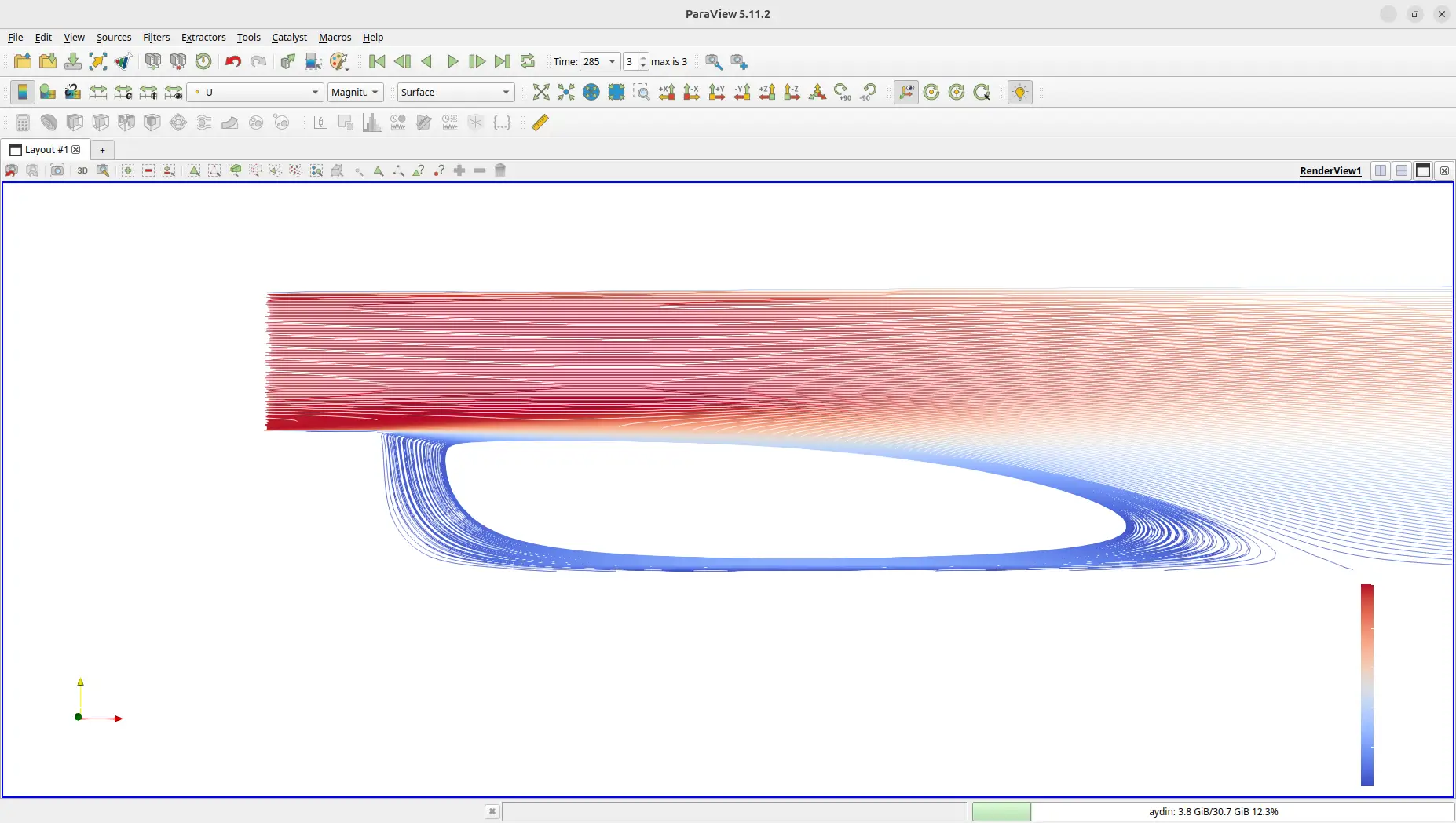
For a streamline view, apply Stream Tracer to the case,
use U as the vector field, and seed lines through the
separated region. The exact seed density is a display choice rather than
a change to the CFD solution; the purpose is to make the reverse-flow
path behind the step visually readable.
The high-speed core remains in the upper part of the expanded channel, while the region immediately downstream of the step has much lower velocity. That low-speed zone is the first visual indication of flow separation and recirculation.
Adding streamlines makes the separated region easier to interpret. The trajectories turn downward behind the step, circulate along the lower wall, and then reconnect with the main downstream flow near the reattachment region.
What the First Simulation Has Demonstrated
This one tutorial has already introduced the full OpenFOAM workflow: activate the correct environment, inspect a case, generate a mesh, verify mesh quality, run a solver, judge convergence from residuals, and post-process a physically meaningful flow feature. That sequence is far more transferable to Marine CFD than memorising a single tutorial command.
Common First-Run Problems
foamRun: command not found: the OpenFOAM 14 environment
is not active. Enter the Foundation shell first with of14 in
this series, or source /opt/openfoam14/etc/bashrc in a
standard setup.
foamRUN: command not found: Linux commands are
case-sensitive. The correct application name is foamRun,
with only the R capitalised.
Mesh files are missing: run
blockMesh -dict "$FOAM_TUTORIALS/resources/blockMesh/pitzDaily"
before launching foamRun.
log.foamRun does not exist: a direct
foamRun command writes progress to the terminal. The
log.foamRun file is created when the tutorial runs the
application through runApplication, such as with
./Allrun.
ParaView reports an xcb/display error on Ubuntu Wayland: use the corrected graphical-session handling described in the OpenFOAM on Ubuntu 24.04 installation guide . In the OceanTechReview isolated shell, Qt is configured to use the Wayland backend when a Wayland session is active.
10. Conclusion: Your First OpenFOAM 14 Simulation
This OpenFOAM 14 tutorial used
pitzDailySteady to build a complete first-simulation
workflow rather than a copy-and-paste exercise. We began inside a clean
Foundation 14 environment, inspected the OpenFOAM case structure,
generated the backward-facing-step mesh, and verified it with
checkMesh.
We then ran the modular solver with foamRun, examined the
alternative Allrun automation path, and confirmed that the
SIMPLE solution converged in 285 iterations. Finally, ParaView was used
to connect the numerical result with the expected flow physics: a
high-speed core above the expansion, separation behind the step, a
low-velocity recirculation region, and downstream reattachment.
The most important lesson is the sequence. A reusable CFD workflow is environment → case → mesh → mesh check → solver → convergence → post-processing → interpretation. The geometry and physics will become more complicated in later Marine CFD cases, but that sequence will remain recognizable.
The official OpenFOAM Foundation 14 Ubuntu guide uses this same case as its getting-started example, while the OpenFOAM v14 backward-facing-step user guide provides the deeper reference for the setup and solver behaviour.
With this first simulation complete, the next step in the series is to
look more closely at what foamRun,
incompressibleFluid, controlDict, and the
SIMPLE controls are doing behind the commands.