
OpenFOAM 14 Commands and Logs: 7 Essential Tests & Easy Fixes
OpenFOAM 14 commands become much easier to use when every mesh check, solver run and failure is saved in a readable log. This evidence-led guide uses seven recorded experiments across two official tutorials to explain steady and transient diagnostics, a 0.5-second restart, and four common input errors.
Engineering focus: This guide uses straightforward OpenFOAM commands and normal text-editor changes. It teaches operational troubleshooting rather than advanced shell scripting, mesh-independence studies or complete hydrodynamic validation.
All solver-output values in the article are taken from the recorded pitzDailySteady and damBreakLaminar experiments. Charts are representations of the actual run histories, not generic illustrations. Values and timing may differ on your hardware.
1. OpenFOAM 14 Commands: Case Setup and the Essentials
Quick start: In a prepared tutorial copy, run blockMesh, then checkMesh, then foamRun. Save each output with > log.filename 2>&1. The seven experiments below explain what those logs reveal, including how to restart from a saved state and correct four real input errors.
Case folders and official Foundation 14 tutorials
For practical marine CFD work, the everyday workflow is straightforward: prepare the case → build the mesh → check the mesh → run the solver → inspect the log → review the results. The numerical details may differ between a steady duct flow, free-surface hydrodynamics and a vessel-resistance simulation, but these operational steps are broadly reusable.
The three essential directories
Every standard case starts with the following directory structure:
caseName/
├── 0/
├── constant/
└── system/
The 0 directory normally defines initial fields and their boundary conditions, constant holds mesh and physical-model information, and system holds execution and numerical controls such as controlDict, fvSchemes and fvSolution. Keep these three directories intact, even when cleaning a copy before another experiment. Solver output directories are separate from these foundational case inputs.
The tutorials used in this guide
| Tutorial | Solver module | Why we use it |
|---|---|---|
pitzDailySteady |
incompressibleFluid |
Read steady SIMPLE residuals and continuity messages; create input-file errors |
damBreakLaminar |
incompressibleVoF |
Read transient time steps and Courant numbers; view the water interface; restart a run |
The reference locations under the OpenFOAM Foundation 14 tutorial collection are:
$FOAM_TUTORIALS/incompressibleFluid/pitzDailySteady
$FOAM_TUTORIALS/incompressibleVoF/damBreakLaminar
Copy each tutorial using your graphical file manager before experimenting with inputs. We deliberately introduced errors in later experiments, so working from an independent copy helps preserve the clean source tutorial. You do not need advanced Linux administration skills to follow the demonstrations.
Activate the OpenFOAM 14 environment configured on your machine and check its version with foamVersion. The output in our tests was OpenFOAM-14. This article describes OpenFOAM Foundation 14, not every similarly named OpenFOAM distribution.
Seven commands for the basic run-and-review workflow
You can run and investigate both tutorials with a small set of readable commands. These are sufficient for the core workflow in this guide.
| Command | Practical purpose |
|---|---|
foamVersion |
Confirm the active OpenFOAM version |
blockMesh |
Build a block-structured computational mesh |
checkMesh |
Inspect mesh geometry and basic quality diagnostics |
foamRun |
Execute the selected solver module in Foundation 14 |
foamListTimes -withZero |
List saved solution directories, including 0 |
paraFoam |
Open simulation results in ParaView |
tail -n 30 log.foamRun |
Read the end of a saved solver log |
Two more useful commands are head -n 40 log.foamRun for the opening messages, and grep to find the terms you care about. These are simple text-reading tools rather than advanced Linux programming.
A short run sequence
For the prepared pitzDailySteady and damBreakLaminar tutorial copies used here, the familiar sequence is:
blockMesh
checkMesh
foamRun
A finished checkMesh report may end in Mesh OK. This is confirmation that the utility’s checks passed, not a proof of mesh independence, numerical accuracy, or suitability for the eventual engineering application.
A solver run can produce many messages: initialization, residuals, continuity diagnostics, time or iteration values, and completion status. Saving them is usually more useful than simply watching them scroll past in the terminal.
Version note: Our shell provided an of14 helper to activate the OpenFOAM environment, but this helper is a local convenience rather than a standard OpenFOAM utility. If your installation uses another activation method, use that instead. Verify the active release with foamVersion.
For more background on these exact files, see our OpenFOAM 14 case-structure guide and first pitzDailySteady simulation tutorial.
2. Save, Monitor and Interpret OpenFOAM Solver Logs
Save the output to files
The simplest reliable approach for our tests is to redirect both normal and error messages to a named log file:
blockMesh > log.blockMesh 2>&1
checkMesh > log.checkMesh 2>&1
foamRun > log.foamRun 2>&1
The > operator sends standard output to a file. The 2>&1 part sends error messages to the same file. Thus, log.foamRun records successful progress and error messages if a run fails. These files are ordinary text: you can double-click them and open them in a text editor.
Running the same command a second time with > overwrites the earlier log. To preserve an error and the subsequent successful run, give them separate names, such as log.badBC and log.fixedBC.
Monitor a log while the solver is running
If you want live feedback without making the solver’s terminal noisy, open a second terminal in the same case and use:
tail -f log.foamRun
This follows the newest output lines as they are written. Pressing Ctrl+C in the monitoring terminal stops the display; it does not terminate foamRun in the first terminal.
Find useful messages quickly
head -n 40 log.foamRun
tail -n 30 log.foamRun
grep 'Solving for' log.foamRun
grep 'continuity errors' log.foamRun
The first two commands show the beginning and end of the file. The last two locate equation-solving and continuity diagnostics. grep matches the text you type, so misspelling the search phrase or changing its capitalization can cause an otherwise valid search to return no lines.
For failures, start by reading the first relevant warning and the fatal error, rather than randomly changing solver tolerances or rebuilding the mesh.
How to distinguish a completed run from a failed run
A message such as End at the end of log.foamRun indicates that the application reached normal termination. In a steady run, SIMPLE solution converged provides additional evidence that the configured convergence criterion was satisfied. In a transient run, the final Time = ... should match the intended physical end time. Never infer successful completion from the existence of a time directory alone.
Keep both logs: If the first attempt fails, write the corrected run into a different filename. The contrast between the failure and successful rerun is often the most valuable evidence in troubleshooting.
3. Experiment A — Steady-State Residuals and Continuity
The pitzDailySteady case demonstrates a steady incompressible-flow calculation through a backward-facing-step geometry. It provides a compact way to learn residual and continuity diagnostics in a SIMPLE-based solver.
Execute and check the case
Inside the copied and prepared tutorial directory, we used:
blockMesh > log.blockMesh 2>&1
checkMesh > log.checkMesh 2>&1
foamRun > log.foamRun 2>&1
Our mesh contained 12,225 cells, and the mesh check reported Mesh OK.. The solver reached the configured SIMPLE convergence criteria and printed:
SIMPLE solution converged in 285 iterations

End
The recorded CPU execution time was approximately 9.36 seconds on the test machine. Actual runtime varies by hardware and load and is not a universal benchmark.
Read Initial residual, Final residual and No Iterations
One of the final solver messages contained:
smoothSolver: Solving for Ux, Initial residual = 0.000120975,
Final residual = 1.20001e-05, No Iterations 5
Ux is the x-component of velocity. The Initial residual and Final residual are diagnostics for this particular linear-solver call. No Iterations 5 means the linear solver took five internal iterations for this call. Those five linear iterations are not the same as the 285 outer SIMPLE iterations.
In this experiment the log reported residuals for Ux, Uy, p, k and epsilon.
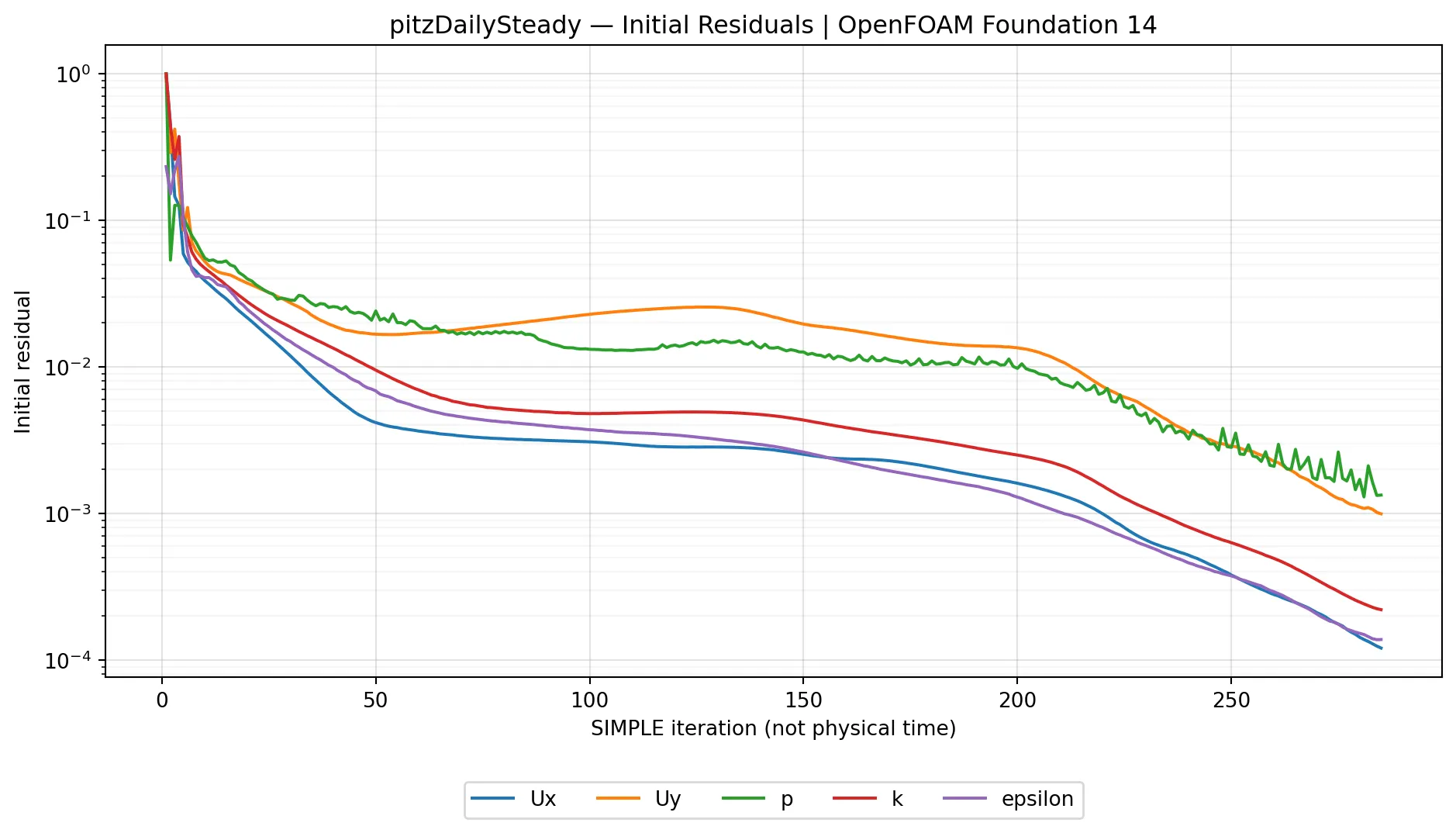
The initial residuals generally decreased, but not monotonically. Pressure and transverse-velocity residuals fluctuated during some periods. Such behavior should be interpreted within the solver’s configured criteria and the complete run history; a single residual curve does not prove physical accuracy or grid independence.
What the continuity error message means
The final SIMPLE iteration included:
time step continuity errors : sum local = 0.00462681,
global = 0.000566091, cumulative = 0.734799
These are solver-reported numerical diagnostics, not directly percentages of water loss. sum local describes a normalized measure of local continuity imbalance; global is a signed global measure, while cumulative accumulates that signed diagnostic across the run. Their values must be interpreted using the solver’s definitions and normalization.
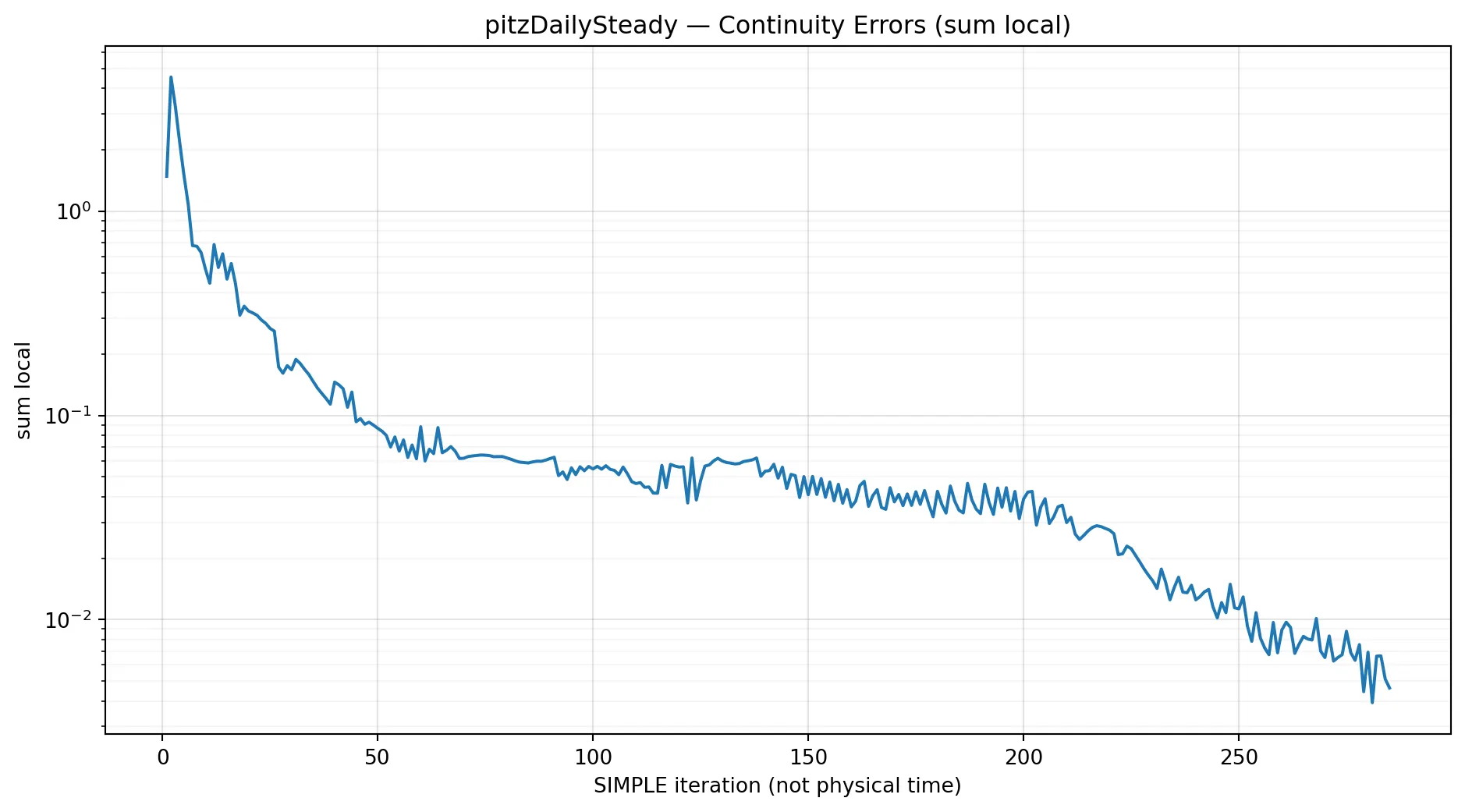
The sum-local continuity history decreases substantially during the 285 SIMPLE iterations, adding context to the residual plot. In a practical review, read both figures alongside the final convergence message rather than drawing conclusions from one number.
What the experiment proves—and what it does not
The 285-iteration convergence message confirms the case satisfied its configured algorithmic stopping criteria. It does not prove that the flow has been validated against an experiment, that a different mesh would produce the same results, or that each individual residual must decrease at every iteration. In engineering use, check physical monitors, mesh sensitivity and reference data whenever available.
4. Experiment B — Transient Logs, Courant Number and Free-Surface Results
Our second tutorial, damBreakLaminar, calculates transient free-surface motion using the Foundation 14 incompressibleVoF solver module. A column of water collapses, flows along the tank, and interacts with a small obstacle. It is a simplified training case, not a validated representation of a particular ship or offshore structure.
Execute the transient case
The same three commands can save the mesh generation, mesh check and full solver output:
blockMesh > log.blockMesh 2>&1
checkMesh > log.checkMesh 2>&1
foamRun > log.foamRun 2>&1
For this tutorial in Foundation 14, the initial alpha.water distribution is configured through a field-function mechanism; our standard run did not require a separate setFields command.
| Recorded measurement | Result |
|---|---|
| Mesh cells | 2,268 |
| Physical time simulated | 0–1 s |
| Computational time steps | 2,131 |
| Saved field-output interval | 0.05 s |
| CPU execution time | 15.8766 s |
| Reported clock time | 16 s |
| Final solver status | End |
Physical Time versus computational deltaT
In a transient simulation, a line such as Time = 1s indicates physical simulation time, not the number of outer SIMPLE iterations. deltaT is the numerical step between successive transient states, while writeInterval governs how frequently output fields are saved.
At the end of our run, the log reported:
Courant Number mean: 0.0525346 max: 0.245257
Interface Courant Number mean: 0.00870954 max: 0.176049
deltaT = 0.00063864
Time = 1s
Over the one-second calculation, the solver performed 2,131 computational time steps while writing only 21 result directories including the original time 0. That is why a time directory does not necessarily represent one solver step.
Read the Courant number
For a simple uniform one-dimensional interpretation, the Courant number can be written as Co ≈ |U| deltaT / deltaX. Its purpose is to relate the numerical time-step length to flow transport across the computational mesh. Real OpenFOAM calculations use flux- and mesh-based formulations appropriate to the discretization.
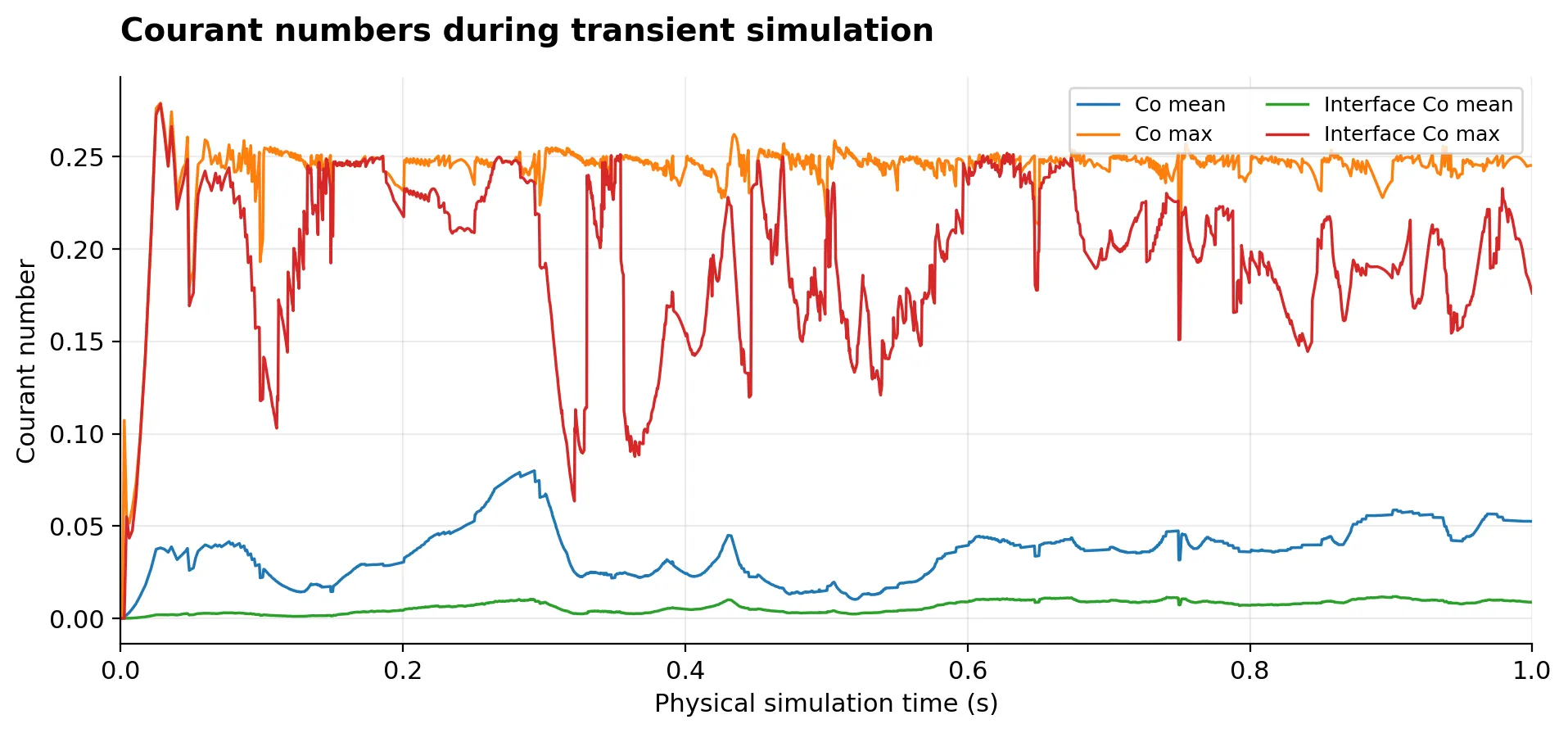
The mean and maximum flow Courant numbers, and their interface counterparts, fluctuate as the water accelerates and the interface deforms. The maximum flow Courant number sits near 0.25 through substantial parts of this run. This is not a universal safe value for every CFD model; suitable limits depend on the solver, schemes, mesh and physics.
Adaptive time stepping: why deltaT varies
The recorded solver adjusted the numerical time-step size instead of keeping it constant. When this mechanism is enabled, the selected constraints, including Courant limits, influence the calculated deltaT.
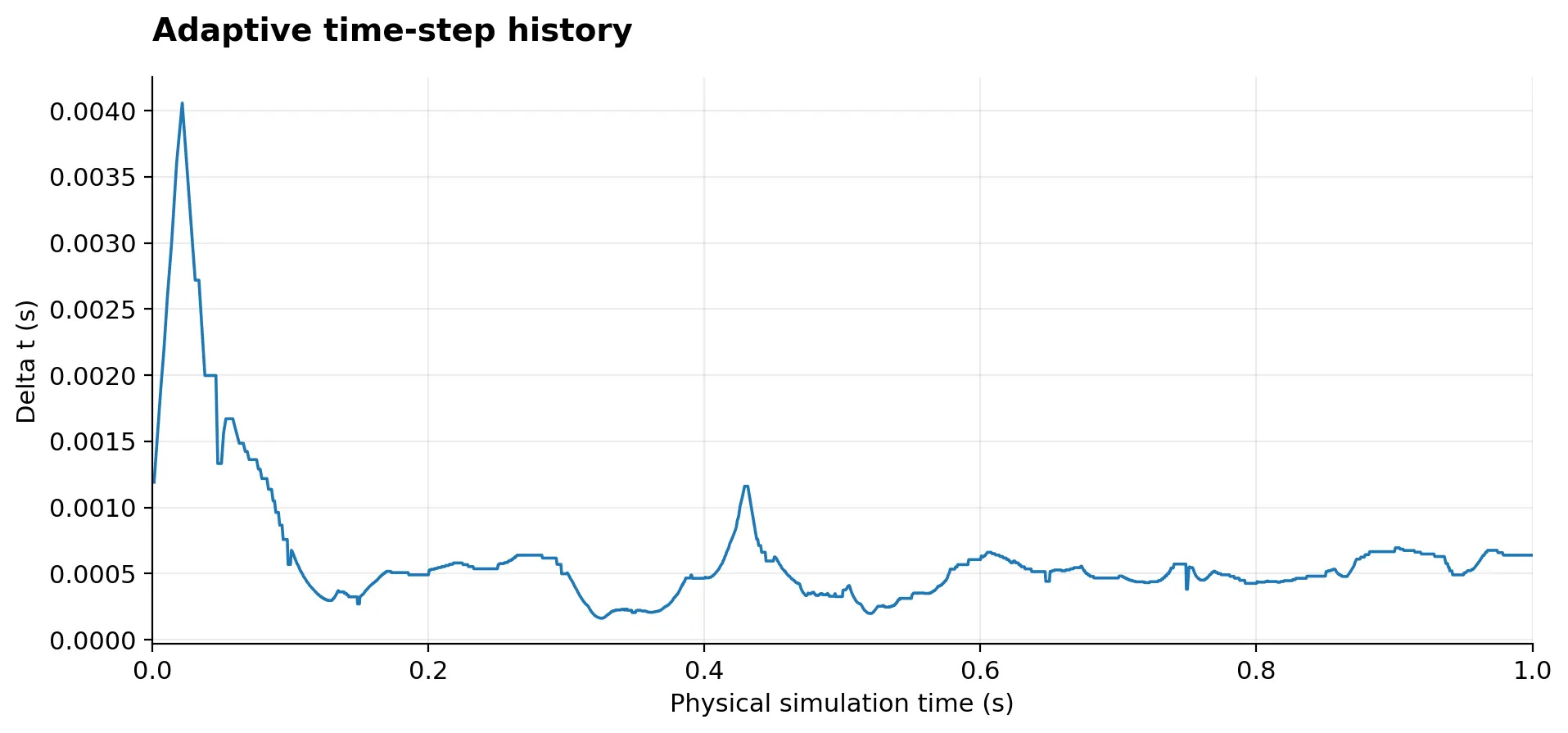
The time-step size changes most strongly during portions of the transient flow development. It is therefore possible to have very different numbers of computational steps in equal physical-time intervals. Do not mistake deltaT for the 0.05-second interval between saved output folders.
Read transient residuals without expecting steady-state convergence
For this two-phase case, important fields include alpha.water (water phase volume fraction) and p_rgh (a pressure variable used in the gravity-related formulation). Pressure may be solved more than once per physical time step.
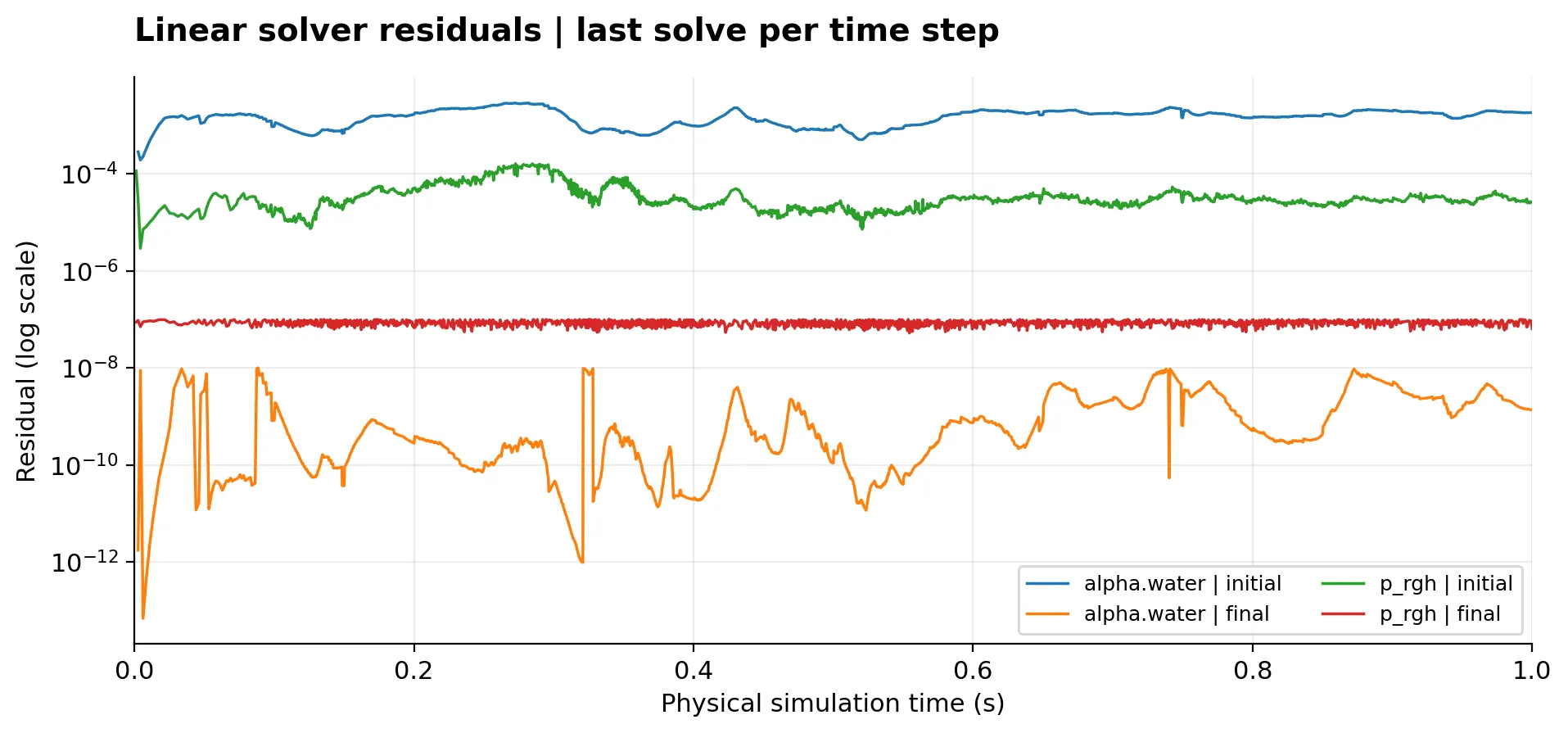
These plotted residuals are the last linear-solver call for each displayed field per time step. The values fluctuate throughout the simulation, reflecting changing physical states and numerical corrections. Transient residuals are not required to decrease monotonically across the entire physical timeline. Inspect the residuals together with time-step, Courant, continuity and warning information.
Reading a single transient step: A Time = 1s line marks the current physical time; deltaT = 0.00063864 is the numerical step size used at that point; and writeInterval = 0.05 governs how often fields were saved in this experiment. The 2,131 computational steps are not the 21 saved time directories.
Three ParaView snapshots at 0, 0.5 and 1 second
Solver logs tell us what the numerical applications reported, while field visualization shows what the calculated flow looks like. After the run, open the case in ParaView using:
paraFoam
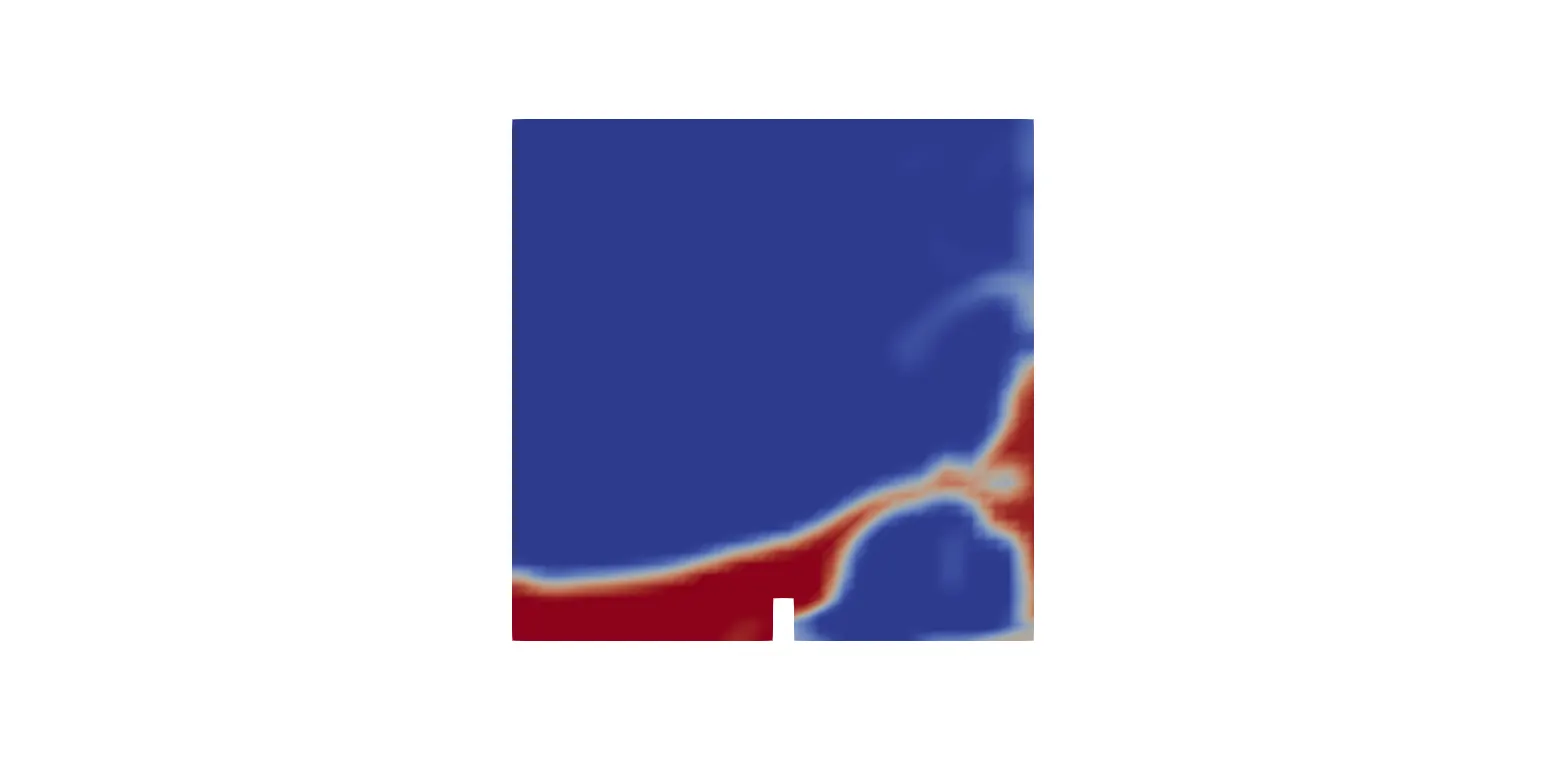
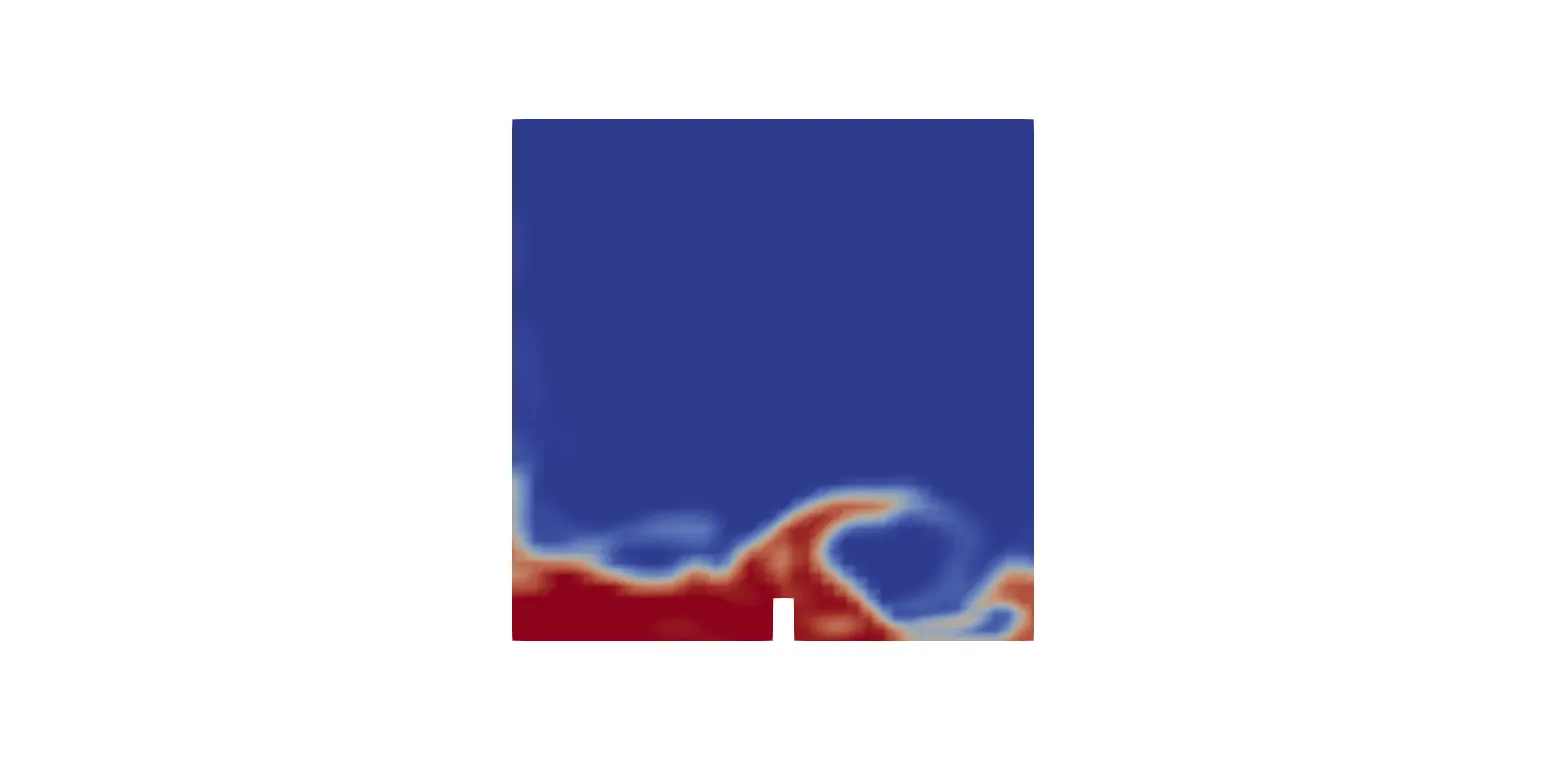
Select the alpha.water field. In this water-air volume-fraction representation, values near 1 indicate water-dominated cells and values near 0 indicate air-dominated cells. Intermediate values are commonly found around the numerical interface.
 t = 0 s
 t = 0.5 s
 t = 1 s
damBreakLaminar at 0, 0.5 and 1.0 seconds. Red denotes water-dominated regions and blue denotes air-dominated regions; all three images use the same scalar field.At time 0, water initially occupies the lower-left part of the tank. By 0.5 seconds the column has collapsed and the flow reaches the obstacle. At 1 second the free-surface distribution becomes more complex around the obstacle and along the tank.
Use a consistent field, view and color scale when presenting snapshots to compare different times. These images help readers understand flow evolution; the solver log remains the evidence for the run progress and termination status.
Presentation note: The three snapshots have a wide white canvas in the current image files. Crop the original computed screenshots to a common view before replacing hosted assets; do not regenerate their physical fields. Keep the same camera, volume-fraction range and color map so readers can fairly compare the panels.
5. Experiment C — Saved Time Directories and Restart from 0.5 s
Find the saved solution time
After a transient run, the case directory usually contains numerical-time folders in addition to 0, constant and system. To find which times were actually saved, execute:
foamListTimes -withZero
Our continuous dam-break run listed:
0
0.05
0.1
0.15
0.2
0.25
...
0.5
...
0.95
1
There were 21 saved time directories including 0. The directories correspond to output snapshots, not all 2,131 computational steps.
To examine results at time 0.5 s, the corresponding folder must contain the fields needed for further processing or restarting. The presence of a time folder by itself is not proof that the original solver exited successfully: check log.foamRun as well.
Do not indiscriminately delete the 0 directory. For restart exercises, keep the baseline copy untouched and remove only later saved-time folders from an independent restart copy.
Restart step by step
Restarting a CFD run is an operational skill for long transient calculations. The damBreakLaminar baseline produced a valid saved time at 0.5 s, so we used it to demonstrate continuing the calculation without starting from the initial time again.
Prepare the restart copy in the file manager
Make a separate copy of the completed case and retain 0, constant, system, the mesh and the saved fields at 0.5 s. Move or remove time directories later than 0.5 s only from the restart copy so they cannot be mistaken for newly generated results.
Open system/controlDict with a text editor and configure:
startFrom       latestTime;
endTime         1;
latestTime instructs OpenFOAM to choose the newest available saved time in that working case. In our prepared restart copy this was 0.5 s. Save the file and run:
foamRun > log.restart 2>&1
Confirm the actual starting time from the log
Our recorded restart log began with:
Create mesh for time = 0.5
Restarting alpha
...
Starting time loop
deltaT = 0.000373134
Time = 0.500373s
And its final entries included:
Time = 1s
...
ExecutionTime = 10.2909 s  ClockTime = 10 s
End
This confirms the solver read the state saved at 0.5 s and advanced to 1 s. The restart run recorded about 1,060 newly advanced time steps.
Compare continuous and restarted calculations
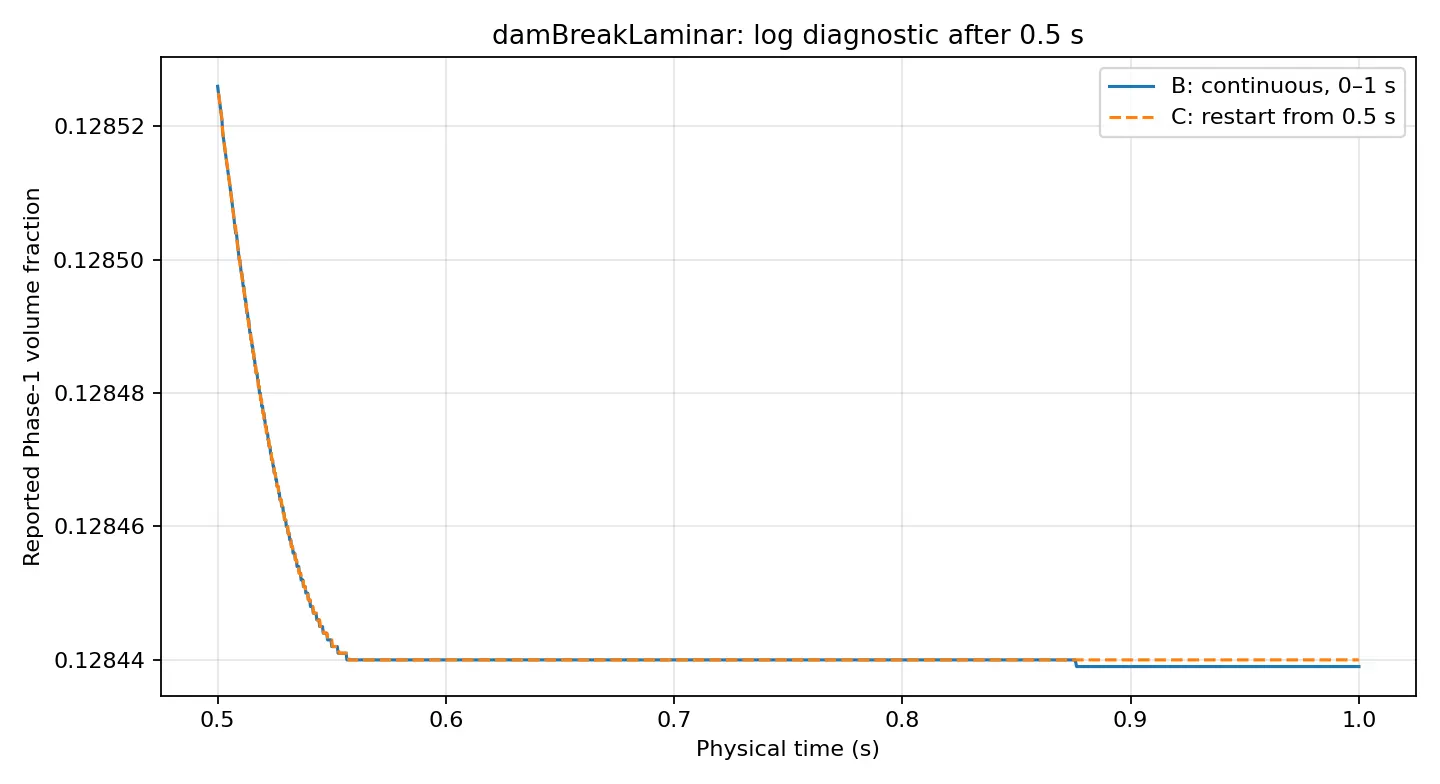
The solver-log histories of the phase-1 volume-fraction diagnostic are nearly coincident between 0.5 and 1 s. At the final time, the continuous run reported approximately 0.128439 and the restart run approximately 0.128440.
This close agreement is useful operational evidence, but not a cell-by-cell validation of the velocity, pressure or phase-fraction fields. Also, the 10.2909-second CPU time for the restarted half-second segment must not be compared directly with the 15.8766-second CPU time for the full one-second run as a solver acceleration claim.
Important distinction: The recommended reproducible workflow is to restart in an independent case copy. The actual recorded restart was performed inside the existing working tutorial directory, so its later saved fields may have replaced earlier outputs. Our comparison therefore uses the preserved continuous-run and restart logs; it is not presented as an independent, cell-by-cell field comparison.
For a field-level comparison: retain separate untouched continuous-run and restarted case directories, load the results at the same physical time, and compare alpha.water, U and p_rgh on matching meshes. Report the comparison method and numerical tolerance rather than claiming exact equality from rounded log values.
6. Troubleshooting 4 Common OpenFOAM Errors (Experiments D–G)
A failed simulation does not always mean an unstable solver. Some failures occur before the first solution iteration because an input file is missing, malformed, physically inconsistent or contains an unknown boundary-condition type.
For the four demonstrations below, we used a working copy of pitzDailySteady, saved the failed run’s log, fixed one input problem and reran the unchanged baseline configuration. All four corrected runs completed 285 SIMPLE iterations. The corrected residual histories repeated the baseline, so showing the same charts four more times would add little information.
The shortest useful investigation sequence is:
Read the failure log → identify the indicated file and entry → correct only that input → save a new log → confirm normal completion.
The following error messages are from the recorded OpenFOAM Foundation 14 experiments; the parent directory in paths has been shortened for readability.
Experiment setup: protect the three essential folders
For each error, start from a fresh copy of the steady pitzDailySteady reference. Keep 0, constant and system; do not corrupt the original case. Make the single specified edit using a normal text editor, save the failed log, revert that edit, and run again with a new log filename. A properly prepared case copy should start from its initial fields, rather than from leftover later solution times.
D — Missing velocity file: 0/U
We temporarily renamed the 0/U velocity field to 0/U.backup inside the working case. The 0 directory itself remained in place, but the field name expected by the solver was absent.
foamRun > log.missingU 2>&1
The failed log showed:
--> FOAM FATAL ERROR:
cannot find file ".../pitzDailySteady/0/U"

FOAM exiting
This is a missing file, not a pressure-convergence or mesh-quality problem. OpenFOAM could not load the required initial velocity field and stopped before the SIMPLE iteration loop.
Fix and verify
Rename 0/U.backup back to 0/U, and run:
foamRun > log.fixedU 2>&1
The corrected log ended in SIMPLE solution converged in 285 iterations followed by End. The most useful evidence for the article is the original fatal message and the successful corrected termination—not another identical residual chart.
E — Syntax error in system/controlDict
Reproducibility limit: The two log messages below come from the actual failed run, but the final byte-for-byte malformed controlDict was not retained. They document a verified diagnosis, not a guarantee that adding any particular unmatched brace in any position will reproduce the identical warning. Restore the original file after the exercise.
Input dictionaries such as system/controlDict require valid punctuation and entry structure. In our syntax-error demonstration, the dictionary parser encountered an unexpected opening brace. The solver log first warned:
FOAM Warning:
found on line 47 the punctuation token '{'
expected either } or EOF
The same failed run then reported:
FOAM FATAL IO ERROR:
keyword deltaT is undefined in dictionary
".../system/controlDict"

FOAM exiting
The important diagnostic is the sequence. A user who reads only deltaT is undefined might assume the time-step entry has been deleted, even though the earlier parser warning points to damaged dictionary structure. A misplaced delimiter or incomplete entry may cause subsequent entries not to be interpreted correctly.
Fix and verify
Open system/controlDict in a text editor, remove the unintended entry or brace, restore the relevant semicolons and save the file. Rerun with a different log filename:
foamRun > log.fixerror 2>&1
The final corrected run had no remaining OpenFOAM warning or fatal error and converged in 285 SIMPLE iterations; recorded CPU time was 7.99579 s. Because the issue was input syntax, there was no need to rebuild the mesh or change physical models.
F — Invalid inlet velocity boundary condition
The inlet velocity boundary condition was originally a valid fixed-value entry:
inlet
{
    type            fixedValue;
    value           uniform (10 0 0);
}
For the failed run, we intentionally changed only the type to an invalid name:
inlet
{
    type            invalidVelocityBC;
    value           uniform (10 0 0);
}
After executing foamRun > log.badBC 2>&1, the log contained:
FOAM FATAL IO ERROR:
Unknown patchField type invalidVelocityBC
for patch inlet of type patch for field U
OpenFOAM also identified the location as the boundaryField/inlet entry in 0/U and displayed recognized patch-field types. This is a strong example of an error whose message already identifies the field, patch, entry and unsupported type.
Fix and verify
Restore type fixedValue;, save 0/U and run foamRun > log.fixedBC 2>&1. The corrected steady-state run converged in 285 SIMPLE iterations, with a recorded CPU time of 9.63779 s. Choosing a recognized boundary-condition name does not by itself establish physical suitability; boundary conditions must also match the intended model and patch physics.
G — Incorrect dimensions of velocity U
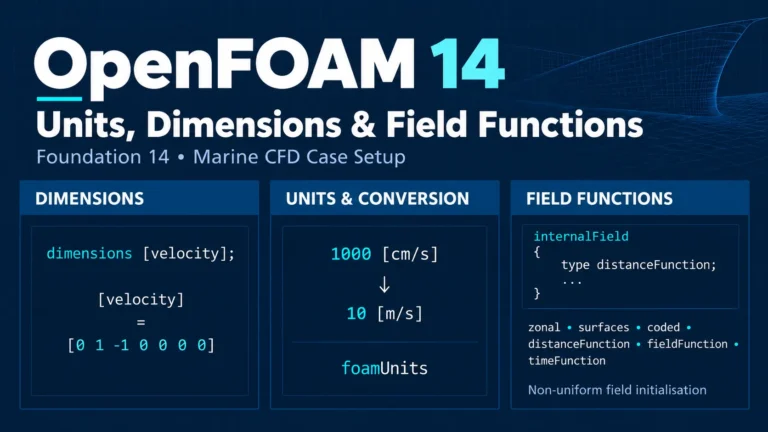
OpenFOAM uses dimensional consistency checks when reading and operating on physical fields. Velocity has SI dimensions length divided by time. The normal Foundation 14 field entry in our case was:
dimensions [velocity];
The corresponding base-dimension exponent vector is:
[0 1 -1 0 0 0 0]
We deliberately changed the 0/U field declaration to dimensionless:
dimensions [0 0 0 0 0 0 0];
The failed log explicitly reported:
FOAM FATAL IO ERROR:
Inconsistent dimensions specified for U [],
required dimensions are [0 1 -1 0 0 0 0]
Fix and verify
Return the entry to dimensions [velocity];, save the file and rerun the case with a new log. The corrected solver converged in 285 SIMPLE iterations, reporting 5.09685 s CPU time and no remaining warnings. This was an input-dimension error, not a numerical divergence. Dimensional checking is valuable, but it does not guarantee that the selected fluid physics or boundary conditions are correct.
Four error messages at a glance
The four failing configurations stopped before the intended steady-state iteration loop. Their corrected runs completed the standard calculation without requiring changes to the mesh or solver algorithm.
| Experiment | Root problem | Distinctive log message | Practical correction |
|---|---|---|---|
| D — Missing file | 0/U unavailable |
cannot find file |
Restore the required file name |
| E — Syntax | Malformed system/controlDict |
Unexpected { followed by missing deltaT |
Repair dictionary punctuation and structure |
| F — Boundary condition | Invalid inlet patch type |
Unknown patchField type |
Restore a supported, appropriate boundary condition |
| G — Dimensions | Velocity defined without dimensions | Inconsistent dimensions specified for U |
Restore [velocity] |
For each troubleshooting example, keep two separate log files: the failing log shows the exact diagnosis, and the corrected log documents the result of the fix. Repeating the same five-field residual plot after every correction does not teach readers as much as these precise before-and-after messages.
The measured CPU times differ between corrected runs. Because hardware conditions and timing variability may change from run to run, those numbers are not a meaningful comparison of the fixes’ computational efficiency.
Why no new residual chart? In all four failed configurations, the solver stopped while reading inputs and before performing a new SIMPLE iteration. The residual plots belong to the corrected runs and repeat the steady baseline behavior. The before-and-after error messages are the most informative evidence for this part of the tutorial.
7. Fast Troubleshooting Checklist Before Changing the Physics
When a marine CFD case produces an unexpected error or stops early, this order of operations helps avoid unnecessary modifications:
- Confirm your version. Check
foamVersionand ensure the case matches the Foundation release you are using. - Read the last log lines. Look for
FOAM FATAL ERROR,FOAM FATAL IO ERRORor an abnormal termination. - Find the earliest relevant warning. A parsing warning can reveal the true problem before the final error message.
- Inspect the named file and entry. Use a text editor for
0/Uorsystem/controlDict, rather than guessing at solver tolerances. - Change only one cause at a time. Do not change the boundary conditions, turbulence model and mesh simultaneously.
- Preserve the failed log. Use a new filename for the corrected run.
- Verify the whole outcome. Confirm the error is gone and read the final solver status; a saved time directory alone is not enough.
- For transient runs, also check physical
Time,deltaT, Courant numbers and saved restart fields.
Successful termination and solver convergence are important but do not replace validation of flow physics, mesh sensitivity or experimental comparison when engineering decisions depend on the result.
If a warning remains after the solver finishes, do not call the case completely clean merely because the log contains End. Inspect the earlier warnings and decide whether they concern the intended inputs or are harmless for your particular workflow.
8. Reproducible Logs, Results and Source Data
Small, descriptive filenames make a CFD workflow easier to revisit:
log.blockMesh
log.checkMesh
log.foamRun
log.restart
log.missingU
log.fixedU
log.syntaxError
log.fixerror
log.badBC
log.fixedBC
log.badDimensions
log.fixedDimensions
For more substantial engineering projects, retain the active OpenFOAM version, the mesh-quality report, case inputs, final log, important plots and the saved field directories needed for the next stage. Logs report what the solver did; time directories store calculated fields. Both may be necessary to recreate a simulation or check a restart.
Datasets used in this article
For a complementary explanation of field boundaries, see OpenFOAM Boundary Conditions for Marine CFD. Additional marine and offshore CFD projects are listed in the Ocean Tech Review Projects section.
Data provenance: The summary tables and plotted curves are based on the logged A–G case runs described above. Log and CSV files were prepared during the experiments, but no public archive URL is included in this article. A download link should only be added after the verified archive has actually been uploaded to a stable location on this website. This avoids presenting a broken or imaginary download.
9. How These Workflow Skills Apply to Marine CFD
The two tutorials are deliberately simple. pitzDailySteady is an internal-flow training case, and damBreakLaminar is a simplified free-surface example. Neither directly validates ship resistance, slamming loads, offshore wave impact or a particular vessel design.
The operational skills, however, transfer well: recording a full solver log makes a vessel-flow simulation auditable; inspecting time-step and Courant histories helps monitor unsteady wave–structure interactions; preserving time directories supports long-running free-surface projects; and distinguishing an invalid input from a numerical failure prevents unproductive mesh or scheme changes.
| Transferable skill | Example marine-CFD use | Additional verification needed |
|---|---|---|
| Saved logs and case inputs | Reproducible hull-flow studies | Consistent geometry, settings and run identifiers |
| Transient time and Courant monitoring | Free-surface and wave-interaction cases | Time-step and mesh sensitivity |
| Restart from saved fields | Long-duration offshore-flow calculations | Field consistency across continued runs |
| Input-error diagnosis | Fixing inlet, outlet and wall configuration | Physical suitability of boundary conditions |
Use the case-setup and log-reading habits from this tutorial as a starting point, then apply the model-specific verification and validation required by the actual engineering question.
10. Frequently Asked Questions About OpenFOAM 14 Commands
How do I save a solver log in OpenFOAM 14?
Use foamRun > log.foamRun 2>&1 in the case directory. It writes ordinary solver messages and reported errors into a single text file.
How can I read the last 30 lines of an OpenFOAM log?
Run tail -n 30 log.foamRun, or open the log using a text editor. For ongoing calculations, tail -f log.foamRun shows new output as it appears.
How do I know whether pitzDailySteady converged?
The reference run used here printed SIMPLE solution converged in 285 iterations, confirming that the configured convergence criteria were met. This does not independently demonstrate physical accuracy.
Why do transient residuals fluctuate even when a simulation finishes?
Physical flow fields evolve at every time step. Each equation solve must be judged against its own solver controls and broader numerical diagnostics; transient residuals need not steadily fall over the full physical-time interval.
How do I restart from the most recent saved time?
In system/controlDict, use startFrom latestTime; and specify an endTime later than the saved time. Confirm that the corresponding saved fields exist, then rerun and read the beginning of the new log.
Does FOAM FATAL IO ERROR mean the mesh is bad?
Not necessarily. Our experiments produced fatal I/O errors for malformed dictionaries, an unknown boundary-condition type and inconsistent velocity dimensions, all before steady-state solution iterations began.
Should I delete the 0 directory when restarting a case?
No. Preserve the three essential case directories 0, constant and system. Manage later result folders only in a separate restart copy and retain the saved state needed for the intended restart.
Are initial and final residuals the same as SIMPLE iterations?
No. Initial and final residuals describe a particular linear-solver call, while an outer SIMPLE iteration can contain multiple individual field solves and associated linear-solver iterations.
11. Official Documentation and Final Takeaways
Official Foundation 14 references
This tutorial is grounded in the workflow and actual solver output of OpenFOAM Foundation 14. The following official resources provide additional detail:
- OpenFOAM Foundation 14 User Guide — reference information for the Foundation release.
- Backward-Facing Step tutorial — background for the steady tutorial.
- Dam-Break tutorial — background for free-surface simulation.
- Time Control (controlDict) — output control and restart-related settings.
The practical results described here are specific to the recorded tests. Other machines, case modifications and OpenFOAM distributions may produce different execution times and log details.
The practical conclusion
A reliable OpenFOAM 14 workflow is not just a sequence of commands. It combines preserved case inputs, mesh checks, solver-log recording, numerical diagnostics, appropriate output management and careful error interpretation.
Our seven experiments illustrated the difference between steady SIMPLE iterations and transient physical time; how to read velocity, pressure and phase-fraction residuals; how Courant numbers and adaptive deltaT appear in transient logs; how to restart from 0.5 s; and how four configuration errors can be diagnosed without blindly changing solver settings.
The most useful habit is simple: save the full log, read its earliest relevant warning, and change only the input that the evidence identifies. This approach scales from training tutorials to much more demanding marine and offshore CFD projects.
For more engineering articles, tutorials and case studies, explore Ocean Tech Review Projects.