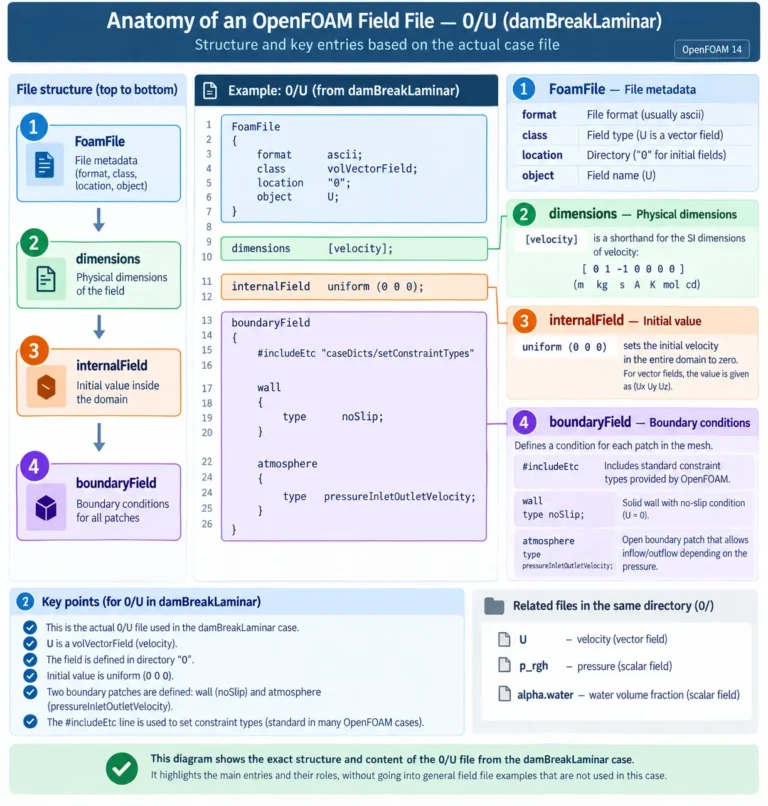


OpenFOAM 14 controlDict: Complete Guide Made Easy
OpenFOAM 14 controlDict is the starting point for controlling a simulation: which solver module runs, where the calculation begins, when it stops, how time advances and when results are saved. Understanding this file makes it much easier to restart a case, manage output and investigate why one calculation takes longer than another.
This guide explains every entry in the supplied
system/controlDict for the
damBreakLaminar tutorial. We also examine three separate
comparisons: reducing maxCo from 1 to
0.25, changing maxDeltaT from 1
to 0.01, and reducing maxAlphaCo from
1 to 0.25.
We previously prepared and ran this example in our
OpenFOAM 14 case-structure guide.
Our previous article on
OpenFOAM 14 solver architecture
explains the relationship between foamRun and solver modules.
Here, we connect that workflow to individual dictionary settings and
the actual solver logs.
The discussion applies to OpenFOAM Foundation 14 and
this transient incompressibleVoF case. The values shown
are the baseline for this example; they are not universal recommendations
for every mesh, solver or free-surface problem.
1. OpenFOAM 14 controlDict: File and Header
The file is located at system/controlDict, relative to the
case directory. Its name has no file extension. A downloaded copy might
carry a .txt suffix for sharing, but the working case uses
the exact filename controlDict.
This dictionary manages the run and its input/output behaviour.
Numerical discretisation belongs mainly in fvSchemes;
equation-solver tolerances and pressure–velocity coupling belong mainly
in fvSolution. Changing a write interval does not change a
discretisation scheme, and increasing output precision does not tighten
a pressure-solver tolerance.
The Complete Baseline File
The following reproduces the functional contents of the supplied file.
It retains startFrom startTime; because each independent
comparison should begin from the same initial condition. We discuss
the more convenient restart option, latestTime, next.
// OpenFOAM Foundation 14: damBreakLaminar
FoamFile
{
    format          ascii;
    class           dictionary;
    location        "system";
    object          controlDict;
}

solver              incompressibleVoF;

startFrom           startTime;
startTime           0;

stopAt              endTime;
endTime             1;

deltaT              0.001;

writeControl        adjustableRunTime;
writeInterval       0.05;

purgeWrite          0;

writeFormat         ascii;
writePrecision      6;
writeCompression    off;

timeFormat          general;
timePrecision       6;

runTimeModifiable   yes;

adjustTimeStep      yes;
maxCo               1;
maxAlphaCo          1;
maxDeltaT           1;
Comments, Braces and Semicolons
The decorative OpenFOAM banner at the top of the original file is a
comment. Text between /* and */, or after
// on a line, is explanatory and does not configure the
calculation. Blank lines and alignment spaces improve readability.
Braces enclose a dictionary block. Individual entries normally follow
the pattern keyword value;, with a semicolon marking the
end. Names are case-sensitive: maxCo,
maxAlphaCo and maxDeltaT must retain their
capital letters.
FoamFile: Each Header Entry Explained
| Line | Meaning | Practical Interpretation |
|---|---|---|
FoamFile |
Introduces the file-header dictionary. | The enclosed entries describe the file itself. |
format ascii; |
This dictionary is stored as readable text. | This header entry describes the input file; output field format is controlled separately by writeFormat. |
class dictionary; |
Identifies the object as a dictionary. | It contains configuration entries, rather than a scalar or vector field. |
location "system"; |
Records the file’s case-relative location. | The file still needs to be placed in the actual system directory. |
object controlDict; |
Identifies the dictionary object. | The object name corresponds to the working filename. |
solver incompressibleVoF;
This line selects the solver module loaded by foamRun.
Here, incompressibleVoF handles the incompressible,
two-phase free-surface calculation. The water volume fraction is stored
in alpha.water.
The word Laminar in the tutorial name does not mean that
this line selects a separate executable called
damBreakLaminar. The case supplies the physical and
numerical configuration, including its momentum-transport model,
while foamRun executes the selected module.
Three spellings matter: the valid starting option is
startTime, not startFrom; the stopping option
is writeNow, not writrNow; and the output
option used here is adjustableRunTime, not
adjustableTime.
2. Starting, Restarting and Stopping a Run
startFrom: All Three Options
startFrom determines how OpenFOAM selects the starting
simulation time. It is a keyword; its value must be one of
startTime, firstTime or
latestTime.
| Option | Selection Rule | Useful Situation |
|---|---|---|
startTime |
Uses the time specified by the separate startTime entry. |
Starting from zero or deliberately selecting a saved checkpoint. |
firstTime |
Selects the earliest available numeric time directory. | Starting from the earliest stored state without entering its time manually. |
latestTime |
Selects the latest available numeric time directory. | Continuing a previously saved calculation. |
For example, suppose the case contains 0,
0.25, 0.5 and 0.75.
firstTime selects 0;
latestTime selects 0.75; and
startFrom startTime; with startTime 0.5;
selects 0.5.
Why latestTime Is Better for Continuing a Simulation
For routine restarts, latestTime is usually the most convenient choice. You do not need to inspect the directory list and manually update the starting time after every interruption. It also helps avoid accidentally restarting a long calculation from zero.
startFrom       latestTime;
startTime       0;

stopAt          endTime;
endTime         1;
In this configuration, startTime 0; does not override the
latest-time selection. If the most recent saved state is
0.75, OpenFOAM attempts to continue from that state toward
1. It cannot recover unsaved progress that existed only
in memory.
The selected directory must contain the fields and supporting state
needed for a valid restart. Selecting the latest directory is not a
check that every file in it is complete. If the latest saved time is
already 1 and endTime remains
1, there is no further physical interval to solve.
For the three comparisons in this article, startTime is the
better experimental choice. Each variation must begin from
the same initial fields at 0. Using
latestTime in a previously solved case could turn an
intended fresh comparison into a continuation.
startTime 0;
With startFrom startTime;, this line selects the initial
state at physical time zero. Changing it to 0.5 does not
generate a solution at half a second: compatible saved fields must
already exist at the selected time.
stopAt: All Four Options
| Option | Behaviour | When to Use It |
|---|---|---|
endTime |
Runs toward the configured ending simulation time. | A planned calculation with a defined physical duration. |
noWriteNow |
Stops after the current time step without requesting a final field write. | Stopping when retaining the current unsaved state is unnecessary. |
writeNow |
Finishes the current step, writes the current state and stops. | An orderly early stop with a saved restart point. |
nextWrite |
Stops at the next scheduled output event. | Ending on the established write schedule. |
These are cooperative stopping controls, not commands that interrupt
a matrix solve midway through an iteration. For this tutorial,
stopAt endTime; is the clearest normal setting:
every comparison has the same target physical end time.
endTime 1;
The target is one second of simulated flow. This does
not impose a one-second limit on the computer’s execution time.
Starting from 0 gives a one-second physical interval;
restarting from 0.75 leaves another quarter-second to
calculate.
Here, 1 also lies on the 0.05-second output
schedule, so the final state is a scheduled result. For a different
end time, check the output schedule explicitly rather than assuming
every stopping configuration automatically creates the desired final
checkpoint.
The official OpenFOAM v14 time and data-control reference lists these start, stop and output options.
3. deltaT, writeControl and writeInterval
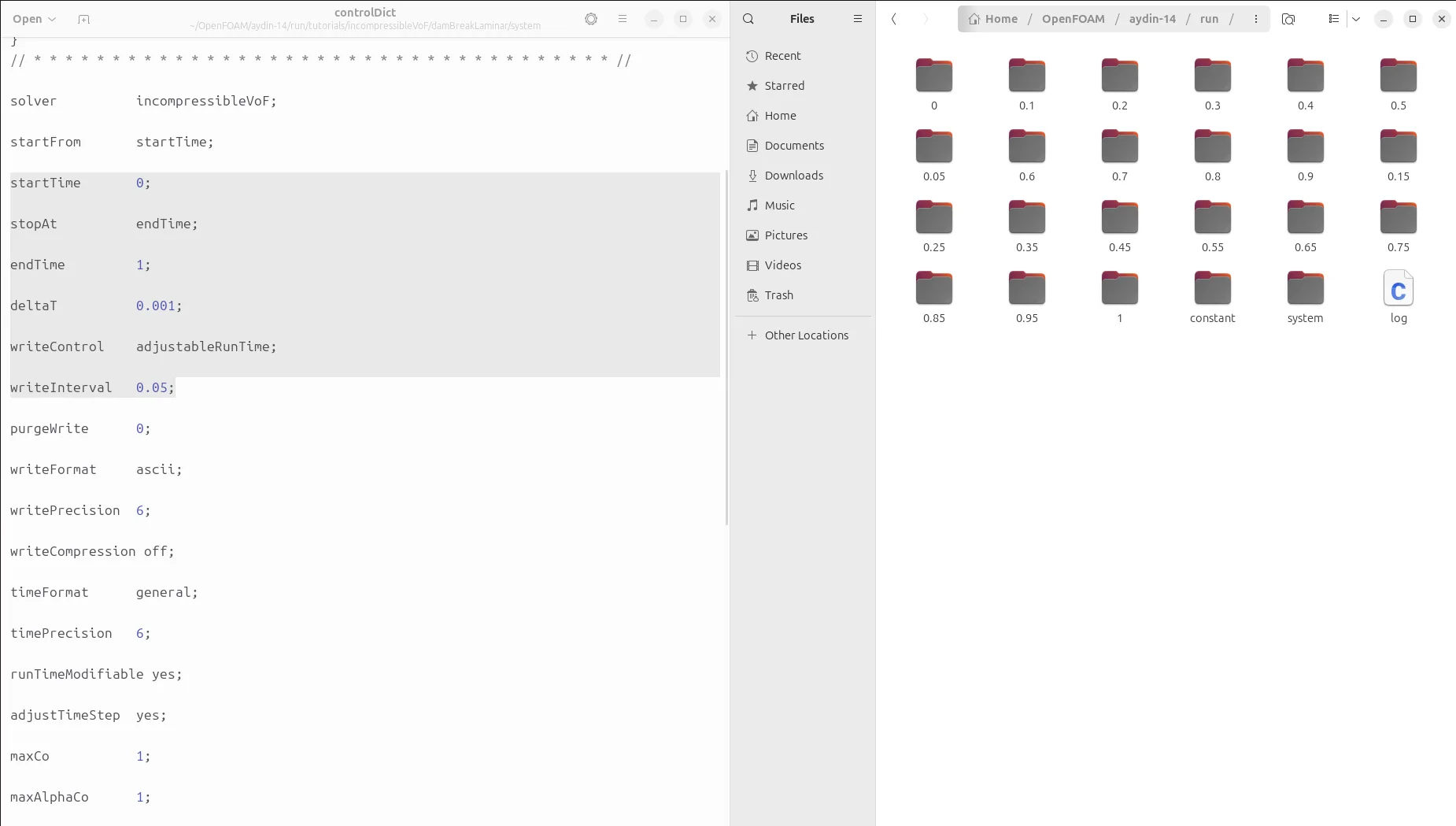
deltaT 0.001;
deltaT is the simulation time-step size. In a fresh run
of this case, 0.001 provides the initial time-step setting:
one millisecond of physical time.
Because adjustTimeStep yes; is enabled, the actual step
can subsequently change. Consequently, this file does not promise
exactly 1,000 steps between zero and one second. The solver log is the
place to inspect the evolving deltaT.
A fixed-step calculation with deltaT 0.001; would advance
through times such as 0.001, 0.002 and
0.003. An adaptive calculation can follow a different
sequence while still saving results at regular physical-time intervals.
writeControl: All Five Options
writeControl selects the basis for scheduling field output.
It must be read together with writeInterval, whose meaning
changes with the selected option.
| Option | What It Counts | Example | Practical Use |
|---|---|---|---|
timeStep |
Completed simulation steps. | writeInterval 50; writes every 50 steps. |
Useful when output should follow the step count. |
runTime |
Elapsed simulated time. | writeInterval 0.05; schedules output at 0.05-second intervals. |
Useful when existing time steps already suit the desired output times. |
adjustableRunTime |
Simulated time, with time-step adjustment to meet the output schedule. | writeInterval 0.05; aligns writes with the scheduled physical times. |
Our choice for this adaptive transient calculation. |
clockTime |
Elapsed real, or wall-clock, time. | writeInterval 600; schedules writes about every ten real minutes. |
Useful for periodic checkpoints during long calculations. |
cpuTime |
CPU time reported by the run. | writeInterval 600; schedules output after CPU-time intervals. |
Useful when output is tied to CPU consumption rather than physical flow time. |
With timeStep, use a positive integer interval. If the
time step varies, 50 steps no longer represent a constant physical
duration. One group of 50 steps might span more flow time than the next.
With runTime, a write becomes due when the advancing time
crosses the next output threshold. This setting does not itself adjust
the steps to land exactly on that threshold. For example, a calculation
stepping from 0.048 to 0.054 can save at
0.054 when it passes a scheduled 0.05 write.
With adjustableRunTime, the time-step scheduling also
accommodates the next write time. This makes the saved states much
easier to compare at common physical times when the stability-driven
time step changes throughout the run.
The clockTime and cpuTime options serve
checkpointing needs rather than evenly spaced flow snapshots.
Their write conditions are evaluated during the solver’s time loop,
so an output event need not occur at the exact instant a stopwatch
reaches the requested interval.
Why We Use adjustableRunTime
writeControl    adjustableRunTime;
writeInterval   0.05;
This combination gives a convenient physical-time output schedule
while allowing the solver to adapt its integration step. Starting
from zero, the intended saved times are
0.05, 0.10, 0.15 and so on,
through 1.
There are 20 scheduled output events over this interval. Including
the existing initial state at 0, the case can therefore
provide 21 time states for inspection, assuming the run completes
normally and all outputs are retained.
deltaT and writeInterval do different jobs.
The former controls how the solution advances; the latter controls
when fields are saved. Writing every 0.05 seconds does
not mean solving the equations only every 0.05 seconds.
4. Output Format, Precision and Live Editing
purgeWrite 0;
This disables automatic removal of older written time directories.
It is appropriate here because we want the full sequence for
post-processing, including the states at 0.25,
0.5 and 1 seconds.
A positive value limits the retained sequence of new output directories.
For example, purgeWrite 2; keeps a rolling set of two newly
written result times. This can reduce disk use for a large calculation,
but it sacrifices earlier snapshots. It is not a limit on the number
of solver steps.
writeFormat ascii;
ascii writes field data as readable text. It is convenient
for learning because you can open a saved field in a text editor and
inspect its values.
The alternative is binary, which stores numerical data
in binary form. Binary output can reduce storage and text-conversion
overhead for large fields, but the numerical arrays are no longer
readable as ordinary text. Compatible OpenFOAM readers can still
load them.
writePrecision 6;
For the normal ASCII output format, this specifies six significant figures for written numerical values. Significant figures are not the same as six digits after the decimal point.
This controls stored numerical representation, not the accuracy of the finite-volume solution. Increasing it cannot repair a coarse mesh or an unsuitable time step. However, too little output precision can introduce avoidable rounding when saved fields are analysed or used for a restart.
writeCompression off;
off leaves output files uncompressed. Enabling compression
with on can reduce the disk footprint of ASCII output,
with additional compression and decompression work.
Foundation 14 also checks the binary/compression combination: its Time input/output implementation resets compressed binary output to uncompressed binary with a warning. Treat format and compression as related choices rather than assuming every combination behaves identically.
timeFormat general;
This controls how simulation times are written as directory names.
general gives compact names such as 0.05,
0.5 and 1, switching to scientific notation
when appropriate for the magnitude and precision.
| Option | Representation | Example at Time 0.05 with Precision 6 |
|---|---|---|
general |
Compact decimal or scientific representation. | 0.05 |
fixed |
A fixed number of digits after the decimal point. | 0.050000 |
scientific |
Scientific notation with an exponent. | 5.000000e-02 |
timePrecision 6;
This sets the precision used to represent time names. Its interpretation
follows timeFormat: significant digits for
general, or decimal places in the corresponding fixed
and scientific representations.
It does not set deltaT and does not control the precision
of velocity or pressure values. Those are separate concerns. Very
closely spaced output times may require more naming precision so
distinct times remain distinguishable.
runTimeModifiable yes;
This enables checking and rereading monitored dictionaries during the run. It allows supported settings, such as the stopping request, to be changed without first terminating the process.
For example, setting stopAt writeNow; during a sufficiently
long running calculation requests an orderly write and stop when the
modified controls are read. The change is not instantaneous, and this
small tutorial may finish before a manual edit is picked up.
Live rereading does not mean every aspect of a running simulation can be replaced. Changing the solver module or the selected starting time is not a way to rebuild or rewind an already initialised calculation. The relevant component must support rereading the setting.
Field-Value Formatting
writeFormat, writePrecision and
writeCompression determine how saved data are represented.
Time-Directory Naming
timeFormat and timePrecision determine
how the time associated with an output directory is named.
5. Adaptive Time Stepping and maxCo
adjustTimeStep yes;
This enables automatic time-step adjustment in the supported transient solver workflow. The calculation can use smaller steps when the evolving flow demands them and increase the step when the active restrictions permit.
The three entries at the end of this file work together:
maxCo limits the flow Courant number,
maxAlphaCo limits the interface Courant number, and
maxDeltaT supplies an absolute upper time-step limit.
Their effects are not independent because the most restrictive
active condition governs the permitted step.
What the Courant Number Means
A useful one-dimensional interpretation is
Co ≈ |U| × deltaT / deltaX.
It compares how far advection travels during one step with a
characteristic cell length. Faster flow, smaller cells or a larger
time step increase this ratio.
In the finite-volume implementation, the calculation uses face fluxes and cell volumes. The solver prints both a mean and a maximum Courant number. The maximum matters for time-step restriction because a small region can impose the limiting condition even when the domain average is modest.
maxCo 1;
The baseline sets the flow Courant limit to 1.
This is dimensionless: it is not one second, one iteration or a
convergence tolerance.
Reducing the limit asks the adaptive controller for smaller steps
when the flow Courant condition is restrictive. For an otherwise
unchanged instantaneous flow field, changing the target from
1 to 0.25 reduces the Courant-based
permissible step to one quarter. Over a complete nonlinear run,
the relationship need not remain exactly proportional.
The Foundation 14 basicFluidSolver source shows how the Courant-based limit is combined with the absolute time-step limit and model restrictions.
Comparison: maxCo from 1 to 0.25
adjustTimeStep  yes;
maxCo           0.25;
maxAlphaCo      1;
maxDeltaT       1;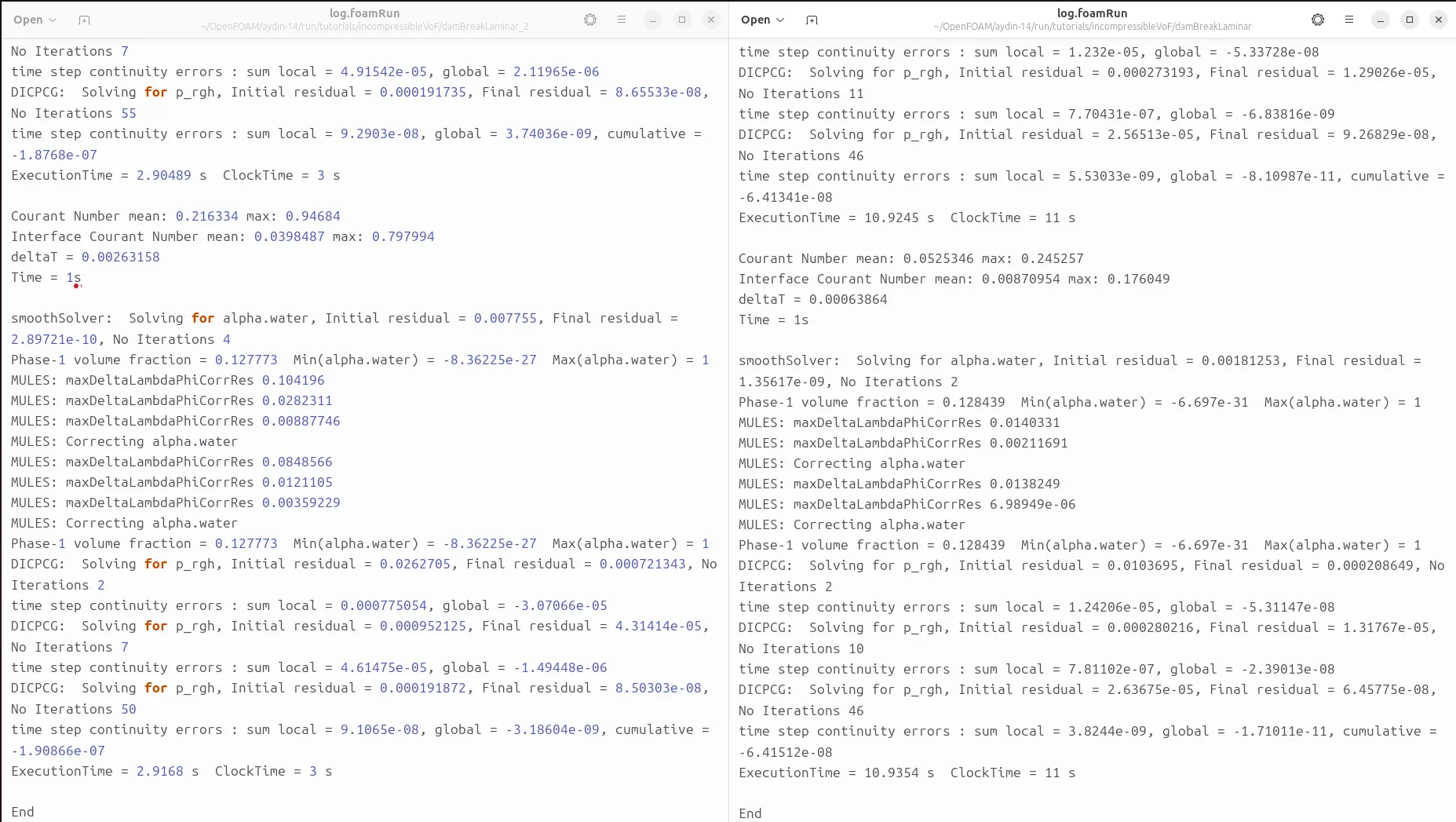
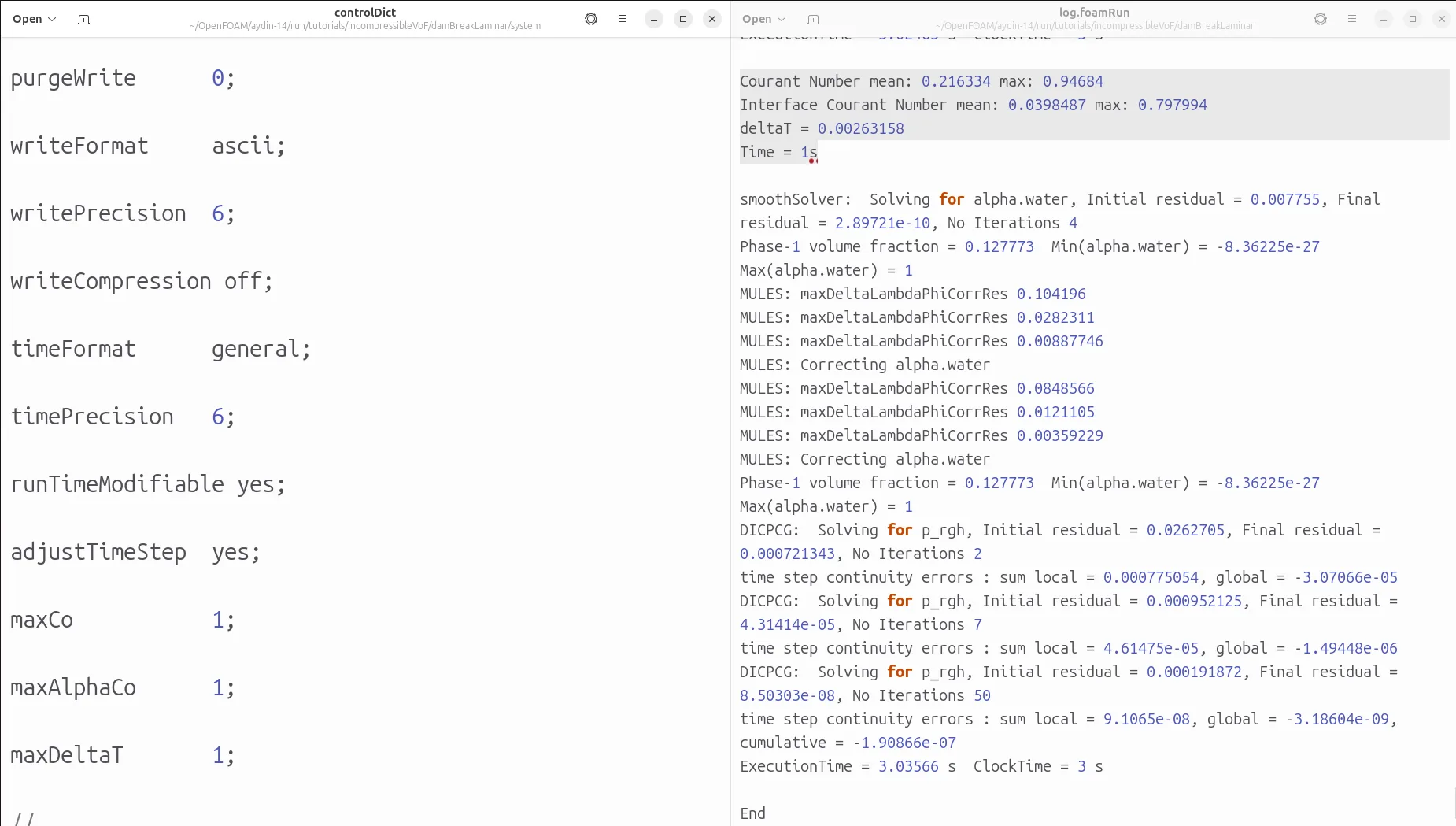
In the displayed final-step block, the baseline reports
deltaT = 0.00263158, while the reduced-maxCo
run reports deltaT = 0.00063864.
The corresponding printed maximum flow Courant numbers are
0.94684 and 0.245257.
The final ExecutionTime increases from
2.9168 s to 10.9354 s, approximately
3.75 times the baseline CPU time. The displayed
ClockTime increases from 3 s to
11 s.
A smaller maxCo is not an accuracy certificate. It can improve temporal resolution and help a difficult calculation, but accuracy still depends on the mesh, schemes, convergence and physical modelling. The measured cost increase belongs to this recorded comparison, not to every OpenFOAM case.
6. maxDeltaT: Limiting the Time-Step Size
maxDeltaT 1;
maxDeltaT supplies an absolute upper limit for the adaptive
time step. Unlike the Courant limits, it has units of time: seconds
in this dam-break case.
The baseline value of 1 does not instruct the solver
to advance by one second per step. It simply provides a generous
ceiling. The Courant constraints can keep the actual step orders
of magnitude below it.
This distinction is especially useful when the flow is temporarily slow. A low Courant number alone may permit relatively large steps, but an absolute ceiling can preserve a desired level of temporal resolution for a transient event.
Comparison: maxDeltaT from 1 to 0.01
adjustTimeStep  yes;
maxCo           1;
maxAlphaCo      1;
maxDeltaT       0.01;
Here, the allowed ceiling changes from one second to
0.01 s, or 10 milliseconds. This is not a request
for a fixed 0.01-second step and does not change the
0.05-second output interval.
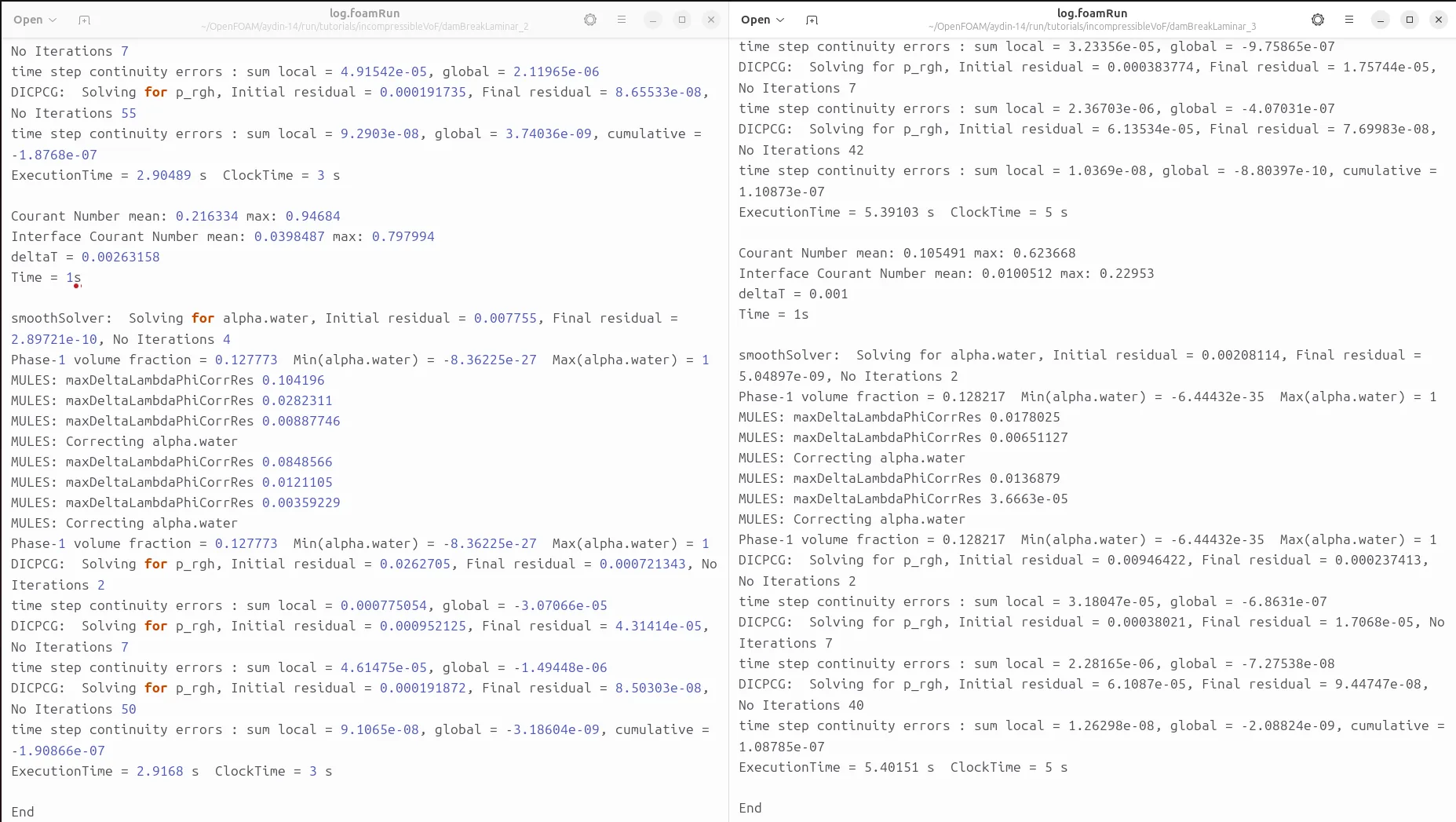
The final CPU time shown on the right is
5.40151 s, compared with
2.9168 s for the baseline: approximately
1.85 times the baseline CPU time.
The corresponding displayed wall-clock times are 5 s
and 3 s.
Notice that the right-hand log prints
deltaT = 0.001, not 0.01.
A step below the ceiling is entirely possible because other controls,
write-time alignment and the preceding time-step history also matter.
However, the log excerpt alone does not establish which constraint
was active throughout the run.
The cap must become restrictive to directly limit a step.
If every otherwise permitted step is already below
0.01, lowering maxDeltaT to that value
should not directly shorten those steps. The screenshot records
the observed timing, but confirming its cause requires the complete
time-step history and the saved dictionary for that run.
The parameter change from 1 to 0.01 is the
stated setup for this comparison; the screenshot itself displays
solver output rather than the edited dictionary. Keep that distinction
when documenting numerical experiments.
7. maxAlphaCo: Controlling the Interface
maxAlphaCo 1;
maxAlphaCo sets the interface Courant limit used by this
VOF solver. It is dimensionless and is associated with transporting
the phase interface represented by the volume-fraction field.
For alpha.water, a value of 1 represents a
water-filled cell and 0 represents a cell containing no
water. Intermediate values occur in cells containing the resolved
water–air interface.
The ordinary flow Courant number and the interface Courant number
answer related but different questions. The largest flow Courant
number need not occur in the interface region. Therefore,
maxCo and maxAlphaCo should be inspected
separately in a free-surface calculation.
In Foundation 14, the
VoFSolver time-step implementation
applies the interface-based restriction in addition to the fluid
solver’s restrictions. This explains why lowering
maxAlphaCo can reduce the global time step even if
maxCo is unchanged.
Comparison: maxAlphaCo from 1 to 0.25
adjustTimeStep  yes;
maxCo           1;
maxAlphaCo      0.25;
maxDeltaT       1;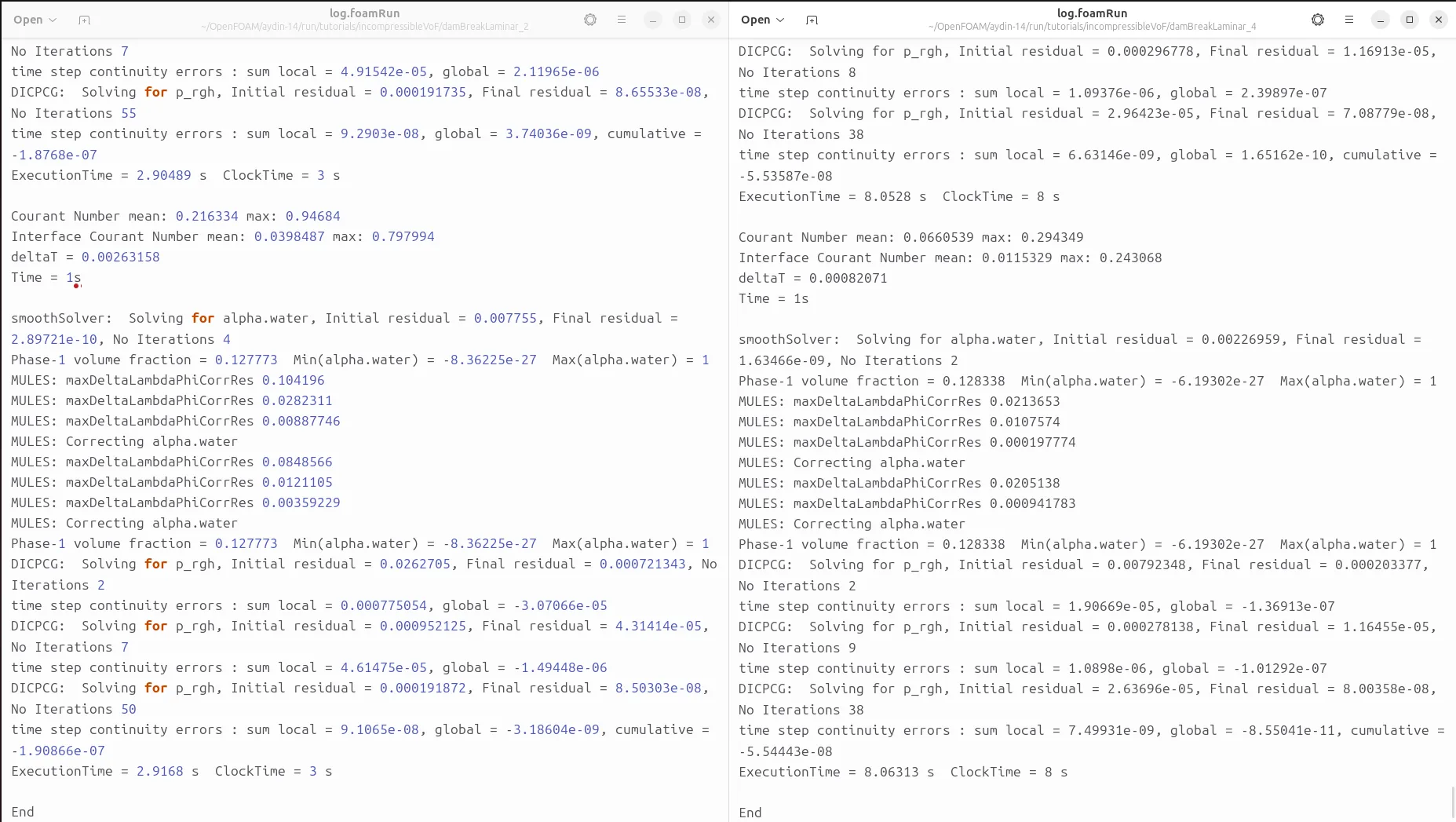
The baseline prints a maximum interface Courant number of
0.797994, while the modified run prints
0.243068. The final displayed step changes from
0.00263158 s to 0.00082071 s.
The final CPU time increases from 2.9168 s to
8.06313 s, approximately 2.76 times
the baseline. The displayed wall-clock times are 3 s
and 8 s.
The modified run’s printed flow Courant maximum is
0.294349, above 0.25. This is not a
contradiction: 0.25 was assigned to
maxAlphaCo, while maxCo remained
1.
How the Three Restrictions Work Together
A useful simplified interpretation is that the solver requests a step no larger than the smallest of the absolute ceiling, the flow-Courant-based allowance and the interface-Courant-based allowance. Model restrictions, step-growth rules and output-time alignment can further influence the actual value.
Permitted time step ≈ minimum of:

    maxDeltaT
    flow-Courant-based allowance
    interface-Courant-based allowance
    additional active model limits

The actual step also follows time-step growth and write-time scheduling.
For example, if the candidate allowances are 0.01 s,
0.003 s and 0.0008 s, the interface
restriction is the tightest. Increasing maxDeltaT
would not remove that restriction.
maxAlphaCo is not an interface-compression coefficient. It does not directly set interface thickness, change the water density or specify the number of alpha-equation subcycles. Those involve other parts of the model and numerical configuration.
8. Run the Case and Compare the Logs
Prepare a Fresh Working Copy
Activate your OpenFOAM Foundation 14 environment first. Then copy the tutorial into a new working directory so the installed reference case remains available. The destination below should not already contain an earlier run.
echo "$WM_PROJECT_VERSION"

mkdir -p "$FOAM_RUN"
cp -r "$FOAM_TUTORIALS/incompressibleVoF/damBreakLaminar" \
      "$FOAM_RUN/damBreakLaminar-controlDict"

cd "$FOAM_RUN/damBreakLaminar-controlDict"

blockMesh
checkMesh
Inspect the mesh report and resolve any reported failure before solving. Use the prepared initial fields from this tutorial and follow the case-specific setup described in our damBreakLaminar walkthrough. Utilities needed by a different dam-break tutorial should not be assumed necessary for this one.
Run foamRun and Keep a Log
cp system/controlDict controlDict.baseline

set -o pipefail
foamRun 2>&1 | tee log.foamRun
tee keeps the output visible while saving it.
In Bash, set -o pipefail makes a solver failure propagate
through the pipeline rather than being hidden by a successful
tee exit status.
Save the dictionary used for every variation. For a controlled comparison, use separate fresh case copies, identical initial fields, the same mesh and numerical settings, and the same computing resources. Change only one of the three limits at a time.
| Run | maxCo | maxAlphaCo | maxDeltaT | Physical Interval |
|---|---|---|---|---|
| Baseline | 1 | 1 | 1 s | 0–1 s |
| Reduced maxCo | 0.25 | 1 | 1 s | 0–1 s |
| Reduced maxDeltaT | 1 | 1 | 0.01 s | 0–1 s |
| Reduced maxAlphaCo | 1 | 0.25 | 1 s | 0–1 s |
Physical Time, CPU Time and Wall-Clock Time
A solver log contains several quantities expressed in seconds, but they describe different things:
| Log Entry | Meaning | How to Read It |
|---|---|---|
Time = 1s |
The current physical simulation time. | The computed flow has reached one second. |
deltaT = ... |
The integration step being reported. | The physical-time increment associated with the step. |
ExecutionTime = ... s |
Accumulated CPU time reported by the application. | A measure of computation consumed during that execution. |
ClockTime = ... s |
Elapsed wall-clock time. | The real waiting time since the application started. |
CPU time and wall-clock time are not interchangeable, particularly across different parallel configurations. For the screenshots here, report both as displayed and use the same metric consistently when calculating a ratio.
Measured Values from the Three Comparison Images
The following values are transcribed from the supplied comparison
screenshots. The execution times are the final values immediately
before End, rather than the earlier timing lines visible
near the top of each image.
| Run | Final Displayed deltaT (s) | ExecutionTime (s) | ClockTime (s) | CPU Time / Baseline |
|---|---|---|---|---|
| Baseline | 0.00263158 | 2.9168 | 3 | 1.00× |
| maxCo = 0.25 | 0.00063864 | 10.9354 | 11 | 3.75× |
| maxDeltaT = 0.01, stated setup | 0.001 | 5.40151 | 5 | 1.85× |
| maxAlphaCo = 0.25 | 0.00082071 | 8.06313 | 8 | 2.76× |
Each ratio is the modified run’s final ExecutionTime
divided by 2.9168. All four runs reach the same
displayed physical time of 1 s.
The final displayed deltaT is a single sample, not the
average step over the full run. It may also reflect alignment with
the last output time. Do not estimate the total step count by dividing
one second by that final value.
Similarly, the printed Courant diagnostics and the subsequently reported step reflect the solver’s execution order. Multiplying or dividing neighbouring log values does not necessarily reconstruct the whole controller decision.
What These Comparisons Establish
The images establish the recorded ending time, selected log diagnostics and reported execution costs. They show that the stricter Courant cases took longer in these executions. They do not, by themselves, prove a particular improvement in solution accuracy.
A stronger accuracy assessment would compare quantities such as interface position, water-volume conservation or pressure histories at matching physical times, and repeat the calculation with further time-step refinement. Performance conclusions also benefit from repeated runs because a three-second tutorial is sensitive to normal system activity and I/O variation.
Useful Log Inspection Commands
grep -E 'Courant Number|Interface Courant Number|deltaT =|^Time =|ExecutionTime' log.foamRun

grep -c '^Time =' log.foamRun

tail -n 35 log.foamRun

foamListTimes
For this solver’s usual log format, counting Time =
lines provides a practical step-count check. Keep the entire log
for analysis: an ending screenshot cannot show when a cap became
active earlier in the calculation.
9. ParaView Results and Common Questions
Inspect alpha.water at Matching Physical Times
paraFoam
Load the case, select alpha.water for colouring and
inspect the saved times. Keep a consistent colour range of
0 to 1 when comparing frames.
In the supplied images, red represents water-rich regions and blue
represents air-rich regions.
These four images show the same dam-break run at 0, 0.25, 0.5 and 1 second. They illustrate temporal evolution; they are not four different parameter settings.
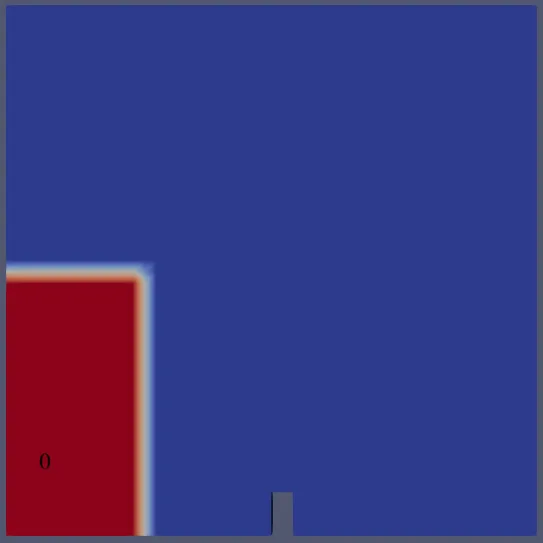
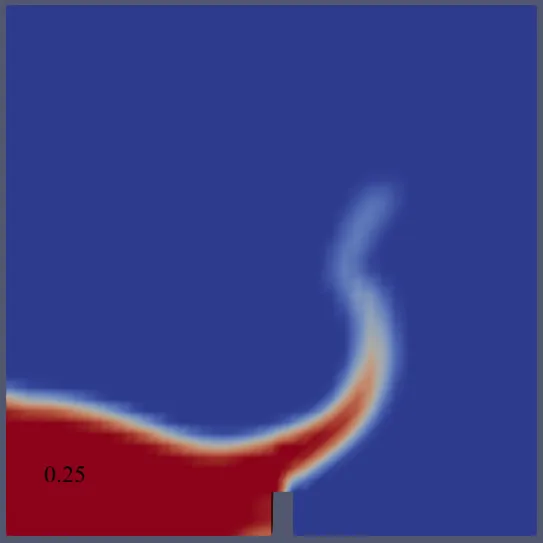
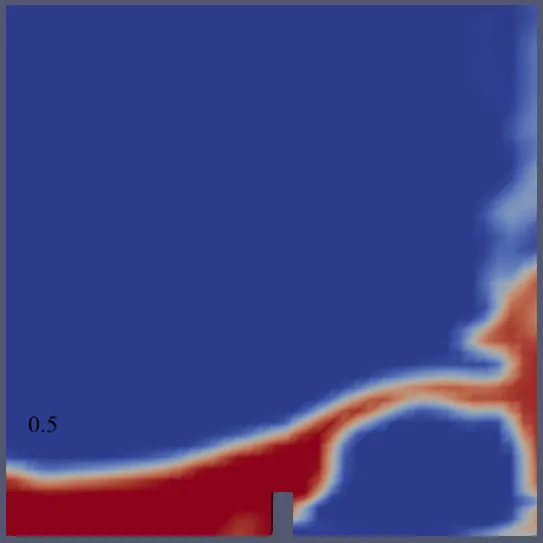
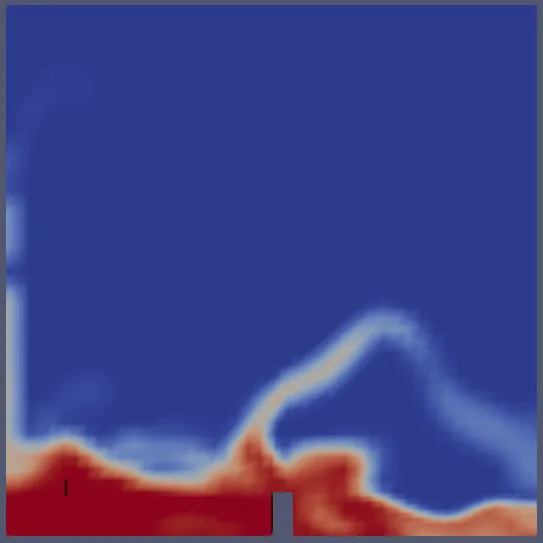
The 0.05-second write interval includes all four selected
times. The solver still performs many intermediate integration steps
that are not individually written to disk.
ParaView’s
official animation documentation
explains how to navigate and animate time-dependent datasets.
Why Does latestTime Seem to Skip the Run?
Check the most recent saved directory and endTime.
If both are 1, the requested calculation has already
reached its target. Increase the target to continue, or use a fresh
case with startFrom startTime; and
startTime 0; for a new experiment.
Why Is deltaT Smaller Than maxDeltaT?
maxDeltaT is a ceiling. The flow Courant limit,
interface Courant limit or output schedule can require a smaller
step. A value below the ceiling is normal.
Why Does Changing maxCo Sometimes Have Little Effect?
Another restriction may already be tighter. For example, an active
interface limit can continue to govern the step after
maxCo is relaxed. Inspect both Courant diagnostics and
the full deltaT history before deciding which setting
controls performance.
Does adjustTimeStep no Make Every Step Identical?
It disables the solver’s automatic stability-based adjustment, but other time controls can still affect scheduling. For a deliberately fixed-step experiment, also choose a compatible write schedule and ensure the selected step divides the desired output and ending times. Monitor the Courant numbers yourself.
Why Are There Fewer Saved Times Than Expected?
Check purgeWrite, the selected
writeControl, the starting time and whether the solver
completed normally. Also remember that writeInterval 50;
under timeStep means 50 steps, while
writeInterval 0.05; under
adjustableRunTime means 0.05 seconds of physical time.
Does More Frequent Output Improve the Solution?
More frequent output provides more saved samples for inspection.
It does not directly improve the spatial discretisation or equation
convergence. With adjustableRunTime, changing the write
schedule can also alter time-step alignment, so it should be held
constant during a controlled timing comparison.
Are Tiny Negative alpha.water Values a Failure?
The logs include negative minima with magnitudes around
10^-27 or smaller. Such values are effectively zero
at the scale of this problem and should be distinguished from
substantial unbounded volume fractions. Assess the magnitude,
persistence and conservation behaviour rather than treating every
printed minus sign as evidence of a failed simulation.
Can I Change All Three Limits Together?
Yes, when configuring a practical run. However, a comparison intended
to explain an individual parameter should change that parameter alone.
Otherwise, a timing or field difference cannot be attributed clearly
to maxCo, maxAlphaCo or
maxDeltaT.
10. Conclusion: Use controlDict with Confidence
The OpenFOAM 14 controlDict file connects the solver, physical-time interval, integration steps and saved results. Reading these settings together explains why a one-second dam-break simulation can require different amounts of computer time while producing output at the same physical instants.
For this workflow, use latestTime when continuing an
existing calculation, and startTime when beginning a
controlled comparison from zero. Keep stopAt endTime;
for the planned one-second run, and use
writeControl adjustableRunTime; to align saved fields
with the chosen physical-time output interval.
Treat maxCo, maxAlphaCo and
maxDeltaT as interacting restrictions. The supplied logs
show different computational costs after each individual change;
deciding whether the extra cost is worthwhile requires examining
the resulting flow quantities and their sensitivity to further
refinement.
For more examples, explore the OceanTechReview projects and the Software & Workflow Notes archive. If these detailed tutorials help your work, you can support OceanTechReview and help fund future engineering guides.